Facility · Step 13 of 13
Your morning email and assistant
Set when your daily email arrives, and connect the assistant if you want one.
About 5 minutes
You are set up. These last two things are about your own day: an email each morning, and an assistant you can talk to.
Your morning email
It is already on. Every morning at 6:00 AM you get your sessions for the day, who is booked, and one suggestion of what to do next.
Tap Settings, then Emails. Under Arrives at, tap the time you want.
Changes on this screen save as you tap.
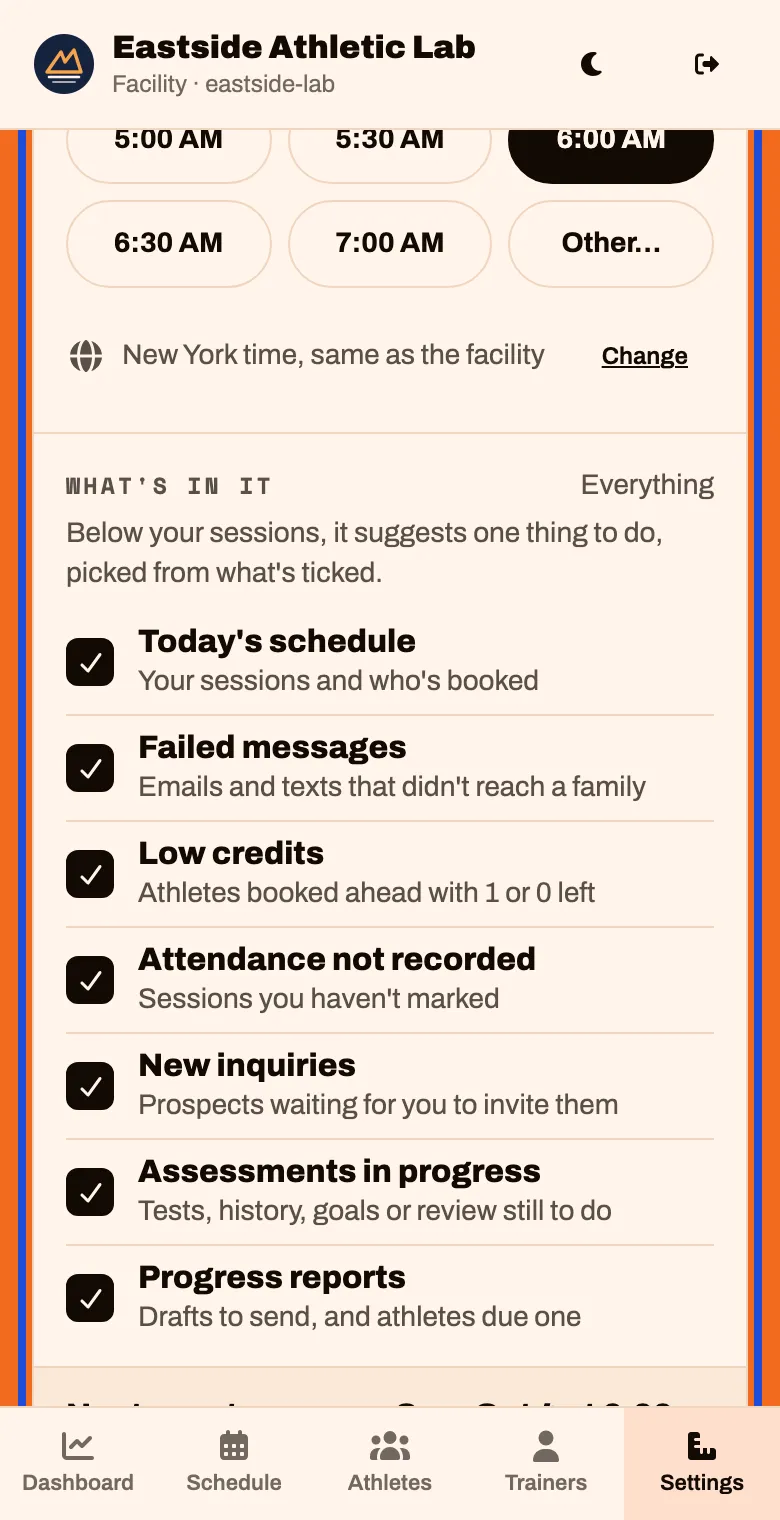
Tap Send me a test email now and look at it in your inbox.
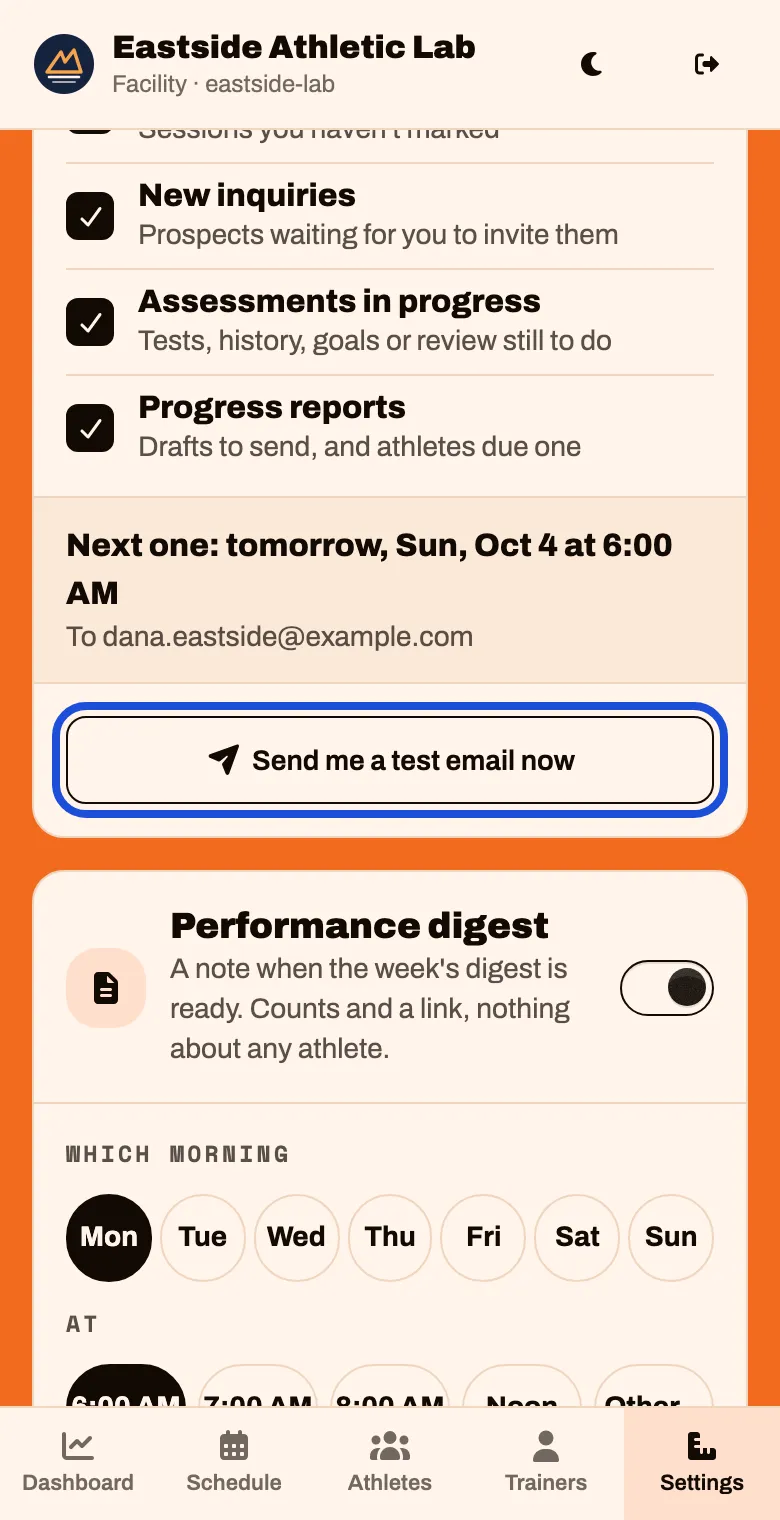
To stop it, use the switch at the top of the card. Your Dashboard still shows the same things.
This is your own email. Each trainer has their own, with only their sessions in it, and sets their own time.
The assistant (optional)
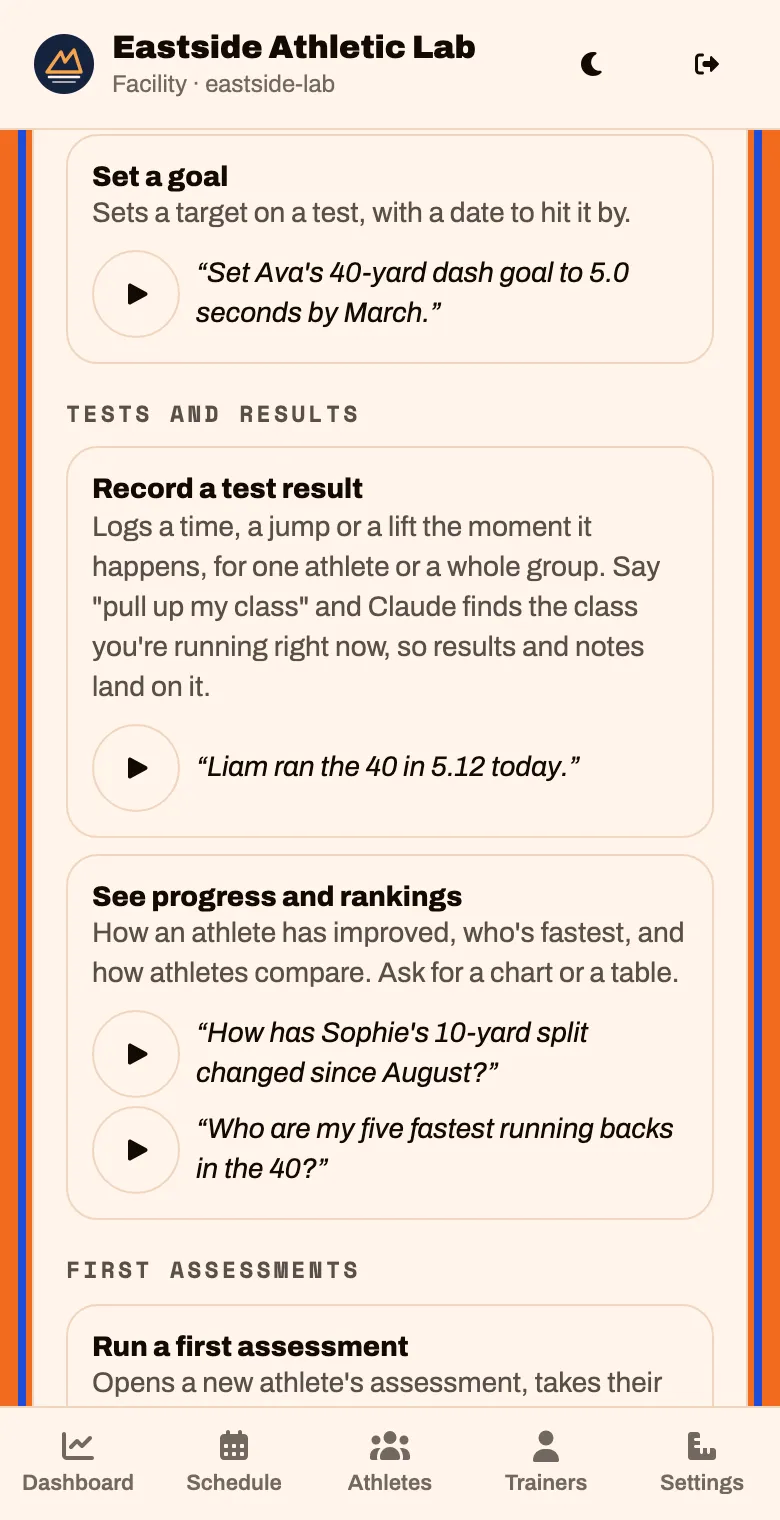
The assistant lets you run your day by talking: “What’s on my schedule this week?”, “Everyone was at the 6 PM class except Cru”, “Liam ran the 40 in 5.12 today”. It works through Claude, an AI assistant, connected to your account.
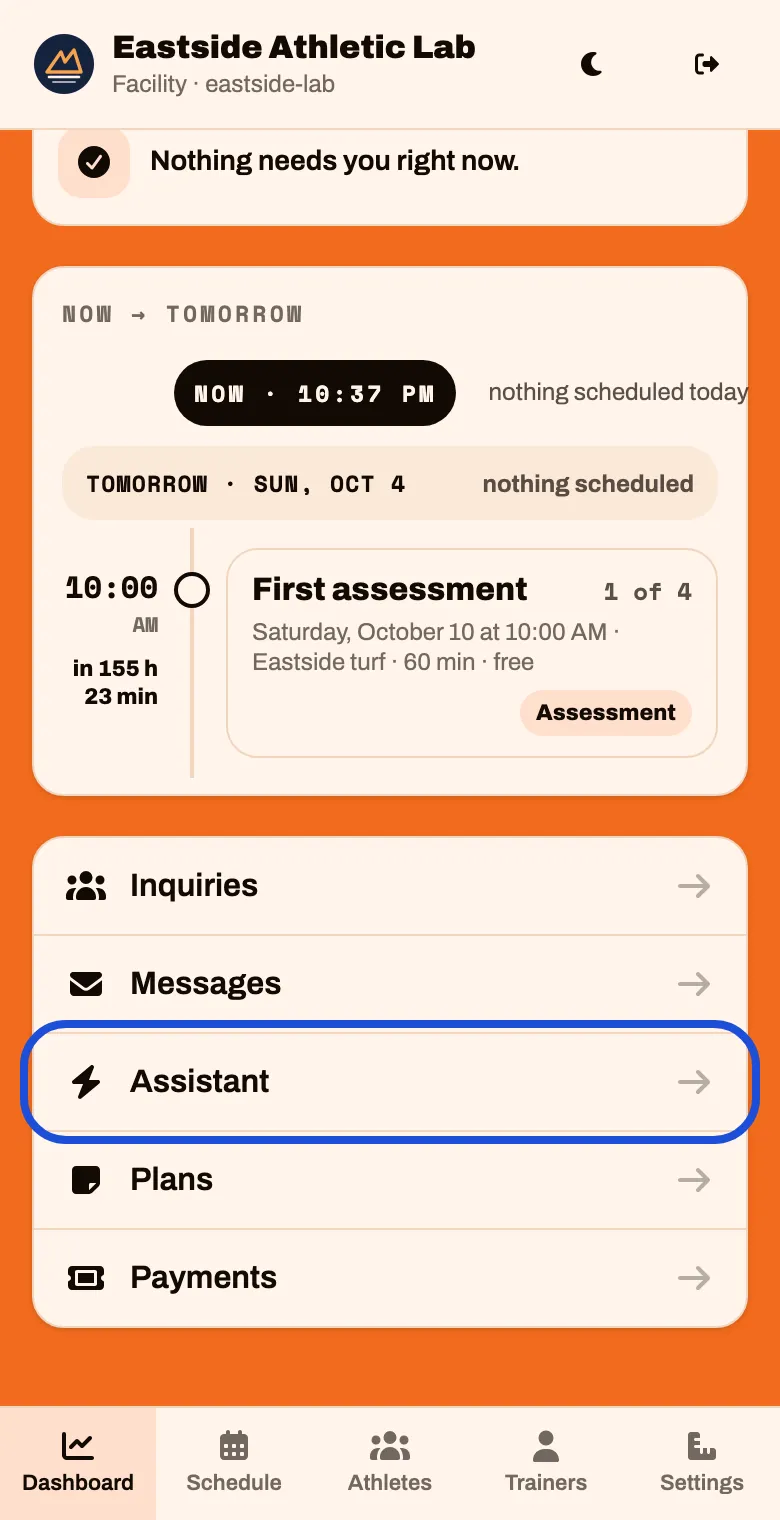
On the Dashboard, scroll to the bottom and tap Assistant
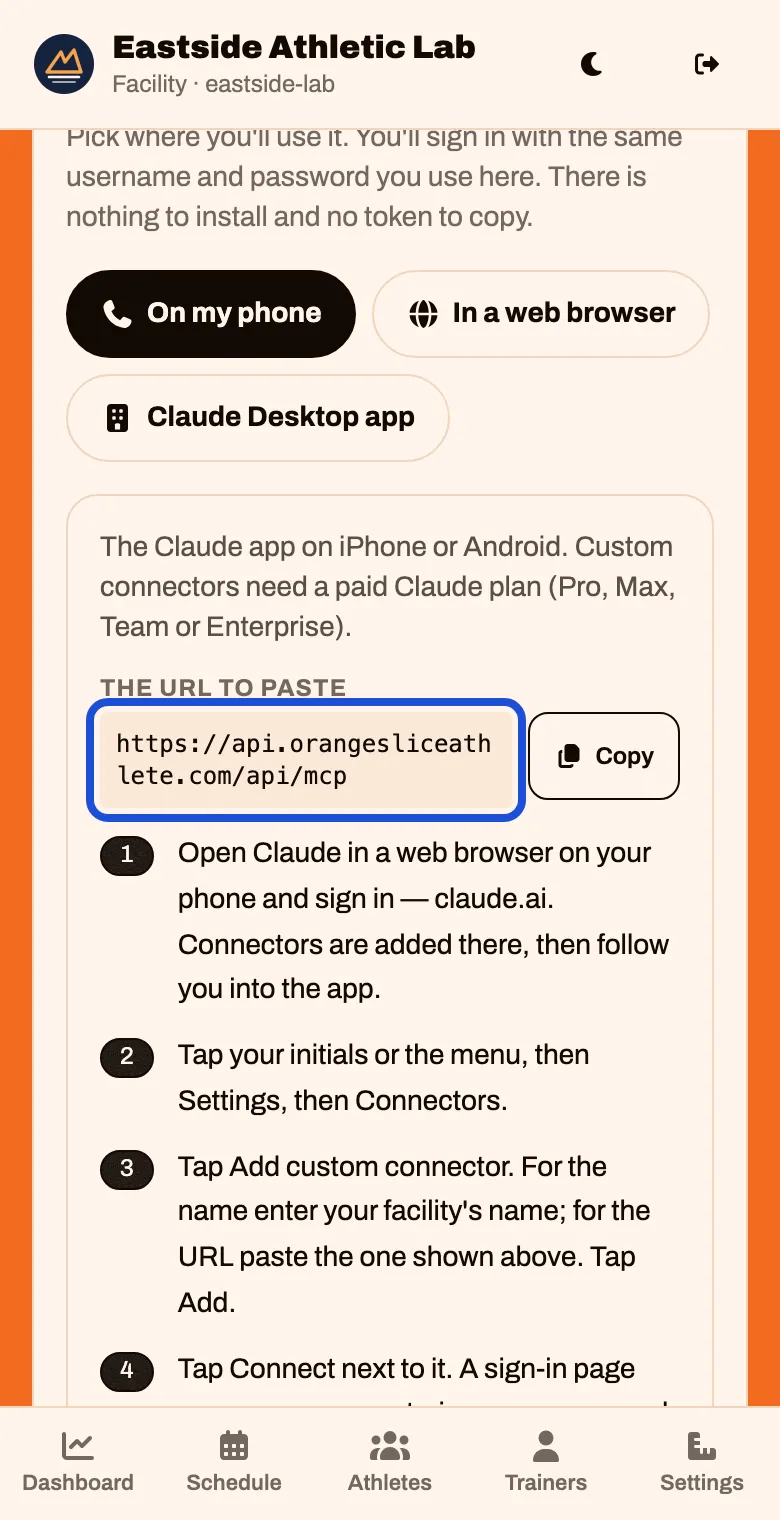
Under Set up Claude, step by step, tap where you will use it, and follow the steps on the screen. Tap Copy to copy the address Claude asks for.
When Claude shows a sign-in page, use your OrangeSlice Athlete username and password, not your Claude one. Tap Sign in & connect
Scroll down to How to use it. Tap ▶ to hear how a trainer asks for each thing.
The assistant’s voice (optional)
Families can talk through their inquiry instead of typing, and they hear a voice. To choose it, or record your own, tap Settings, Access, then Assistant’s voice