Facility · Step 11 of 13
Try it as a parent
Send yourself an inquiry and follow it all the way to a booked assessment.
About 10 minutes
Before you send a real family to your page, go through it once yourself. It takes ten minutes, and you will know exactly what a parent sees.
Be the parent
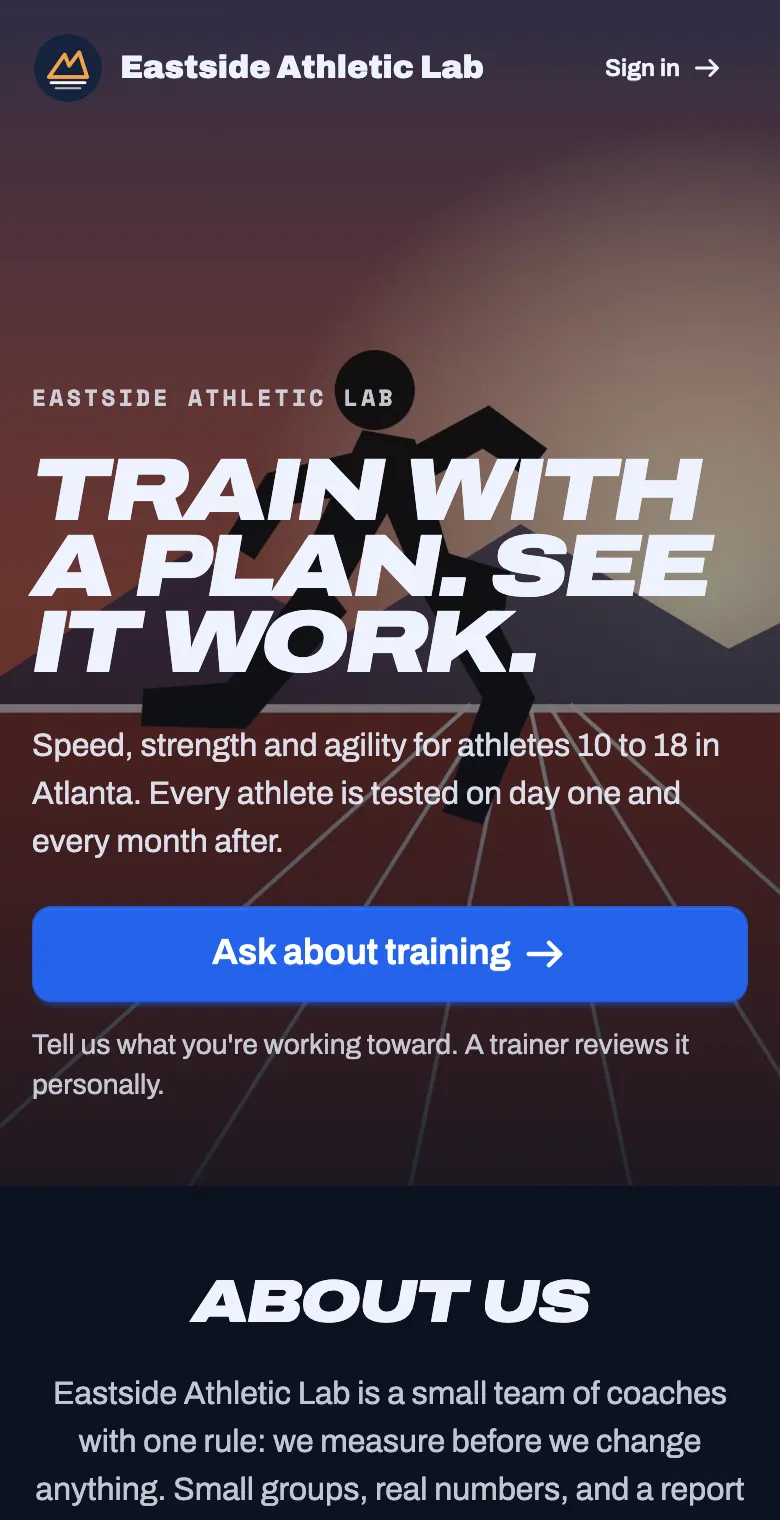
Open your public page and tap Ask about training
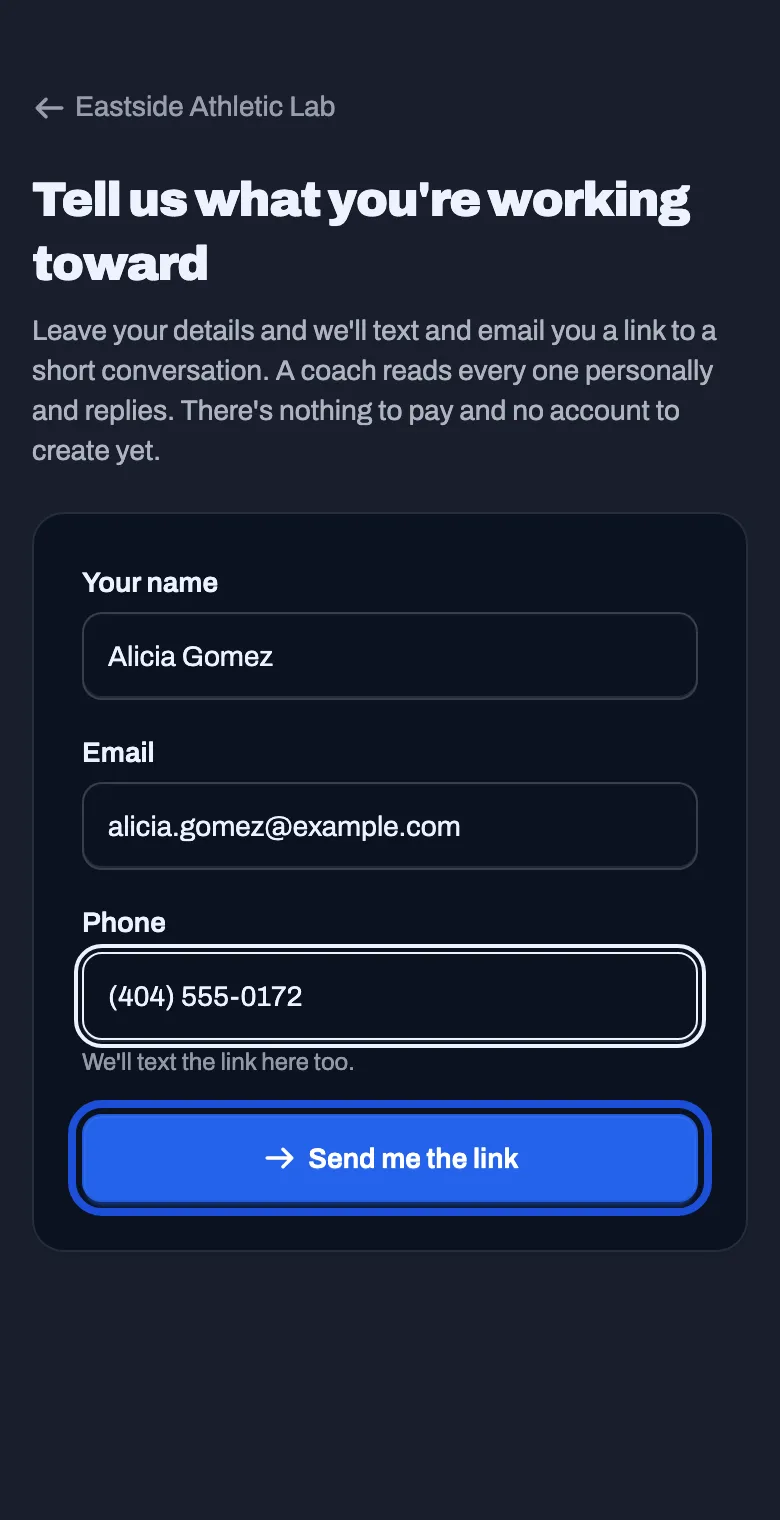
Fill in a name, your other email and your phone. Tap Send me the link
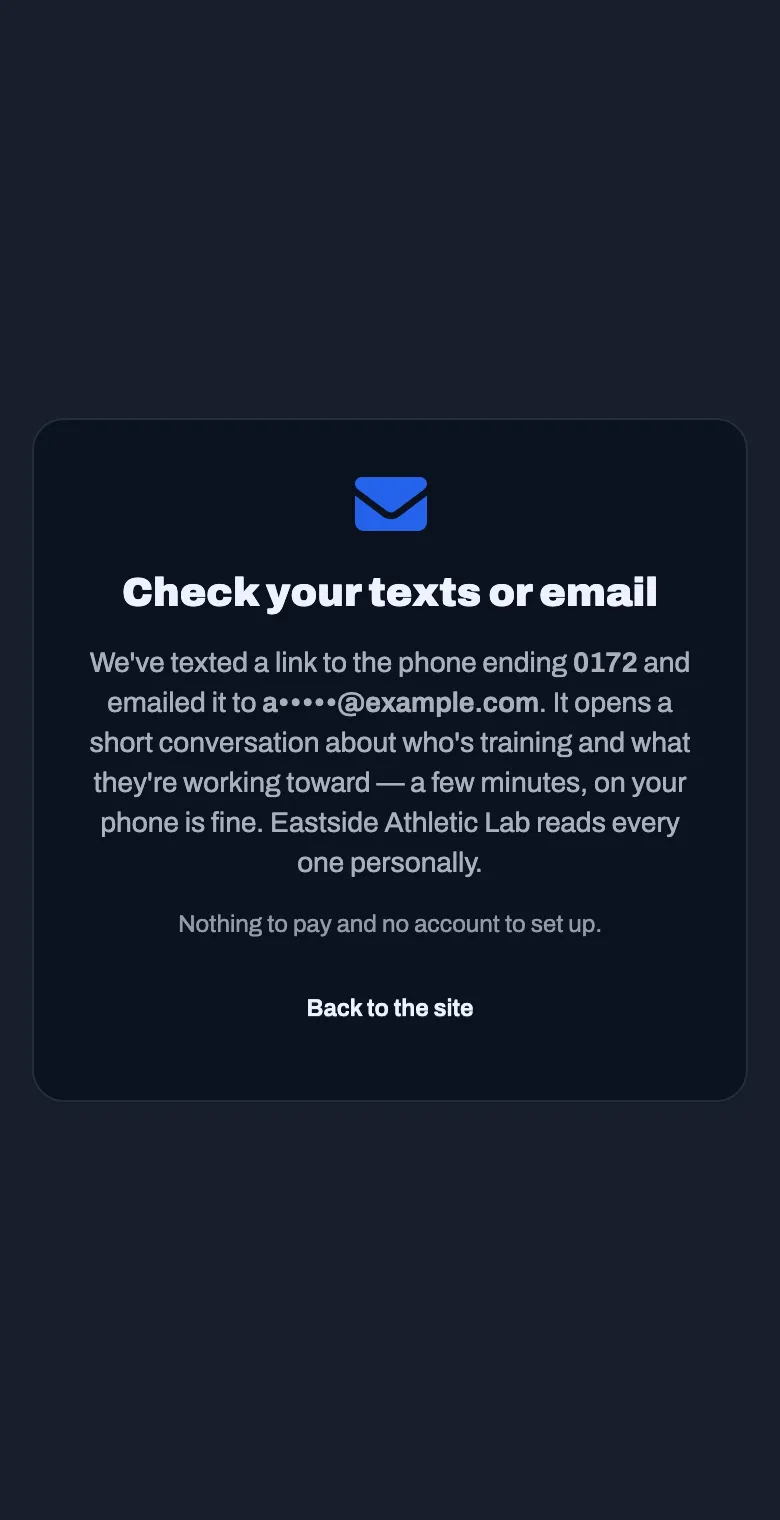
It says Check your texts or email. Open the email and tap the link in it.
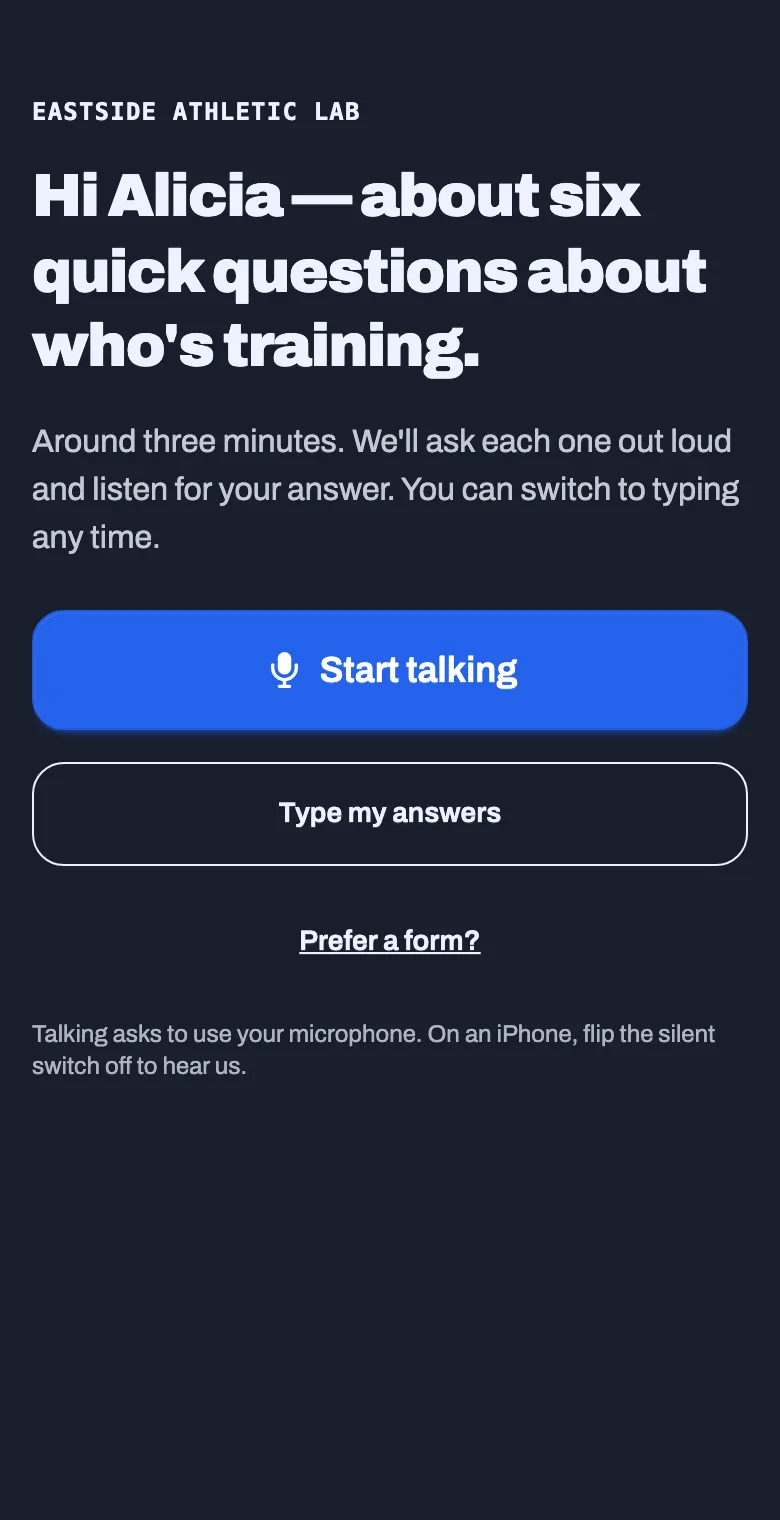
Answer the questions. A parent can talk, type, or tap Prefer a form? to fill in a form.
Make up an athlete, fill it in, and tap Send to the coach
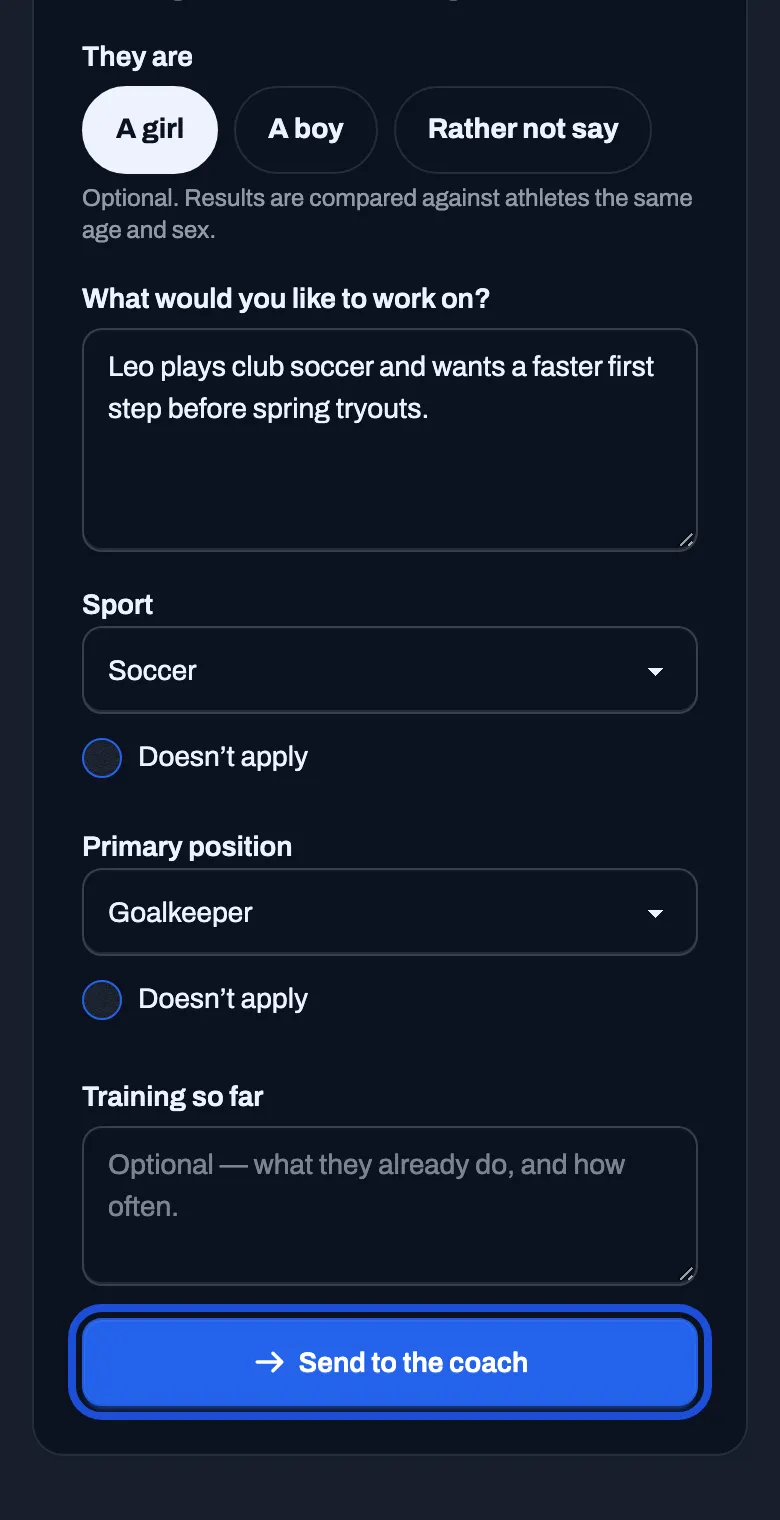
Be the trainer
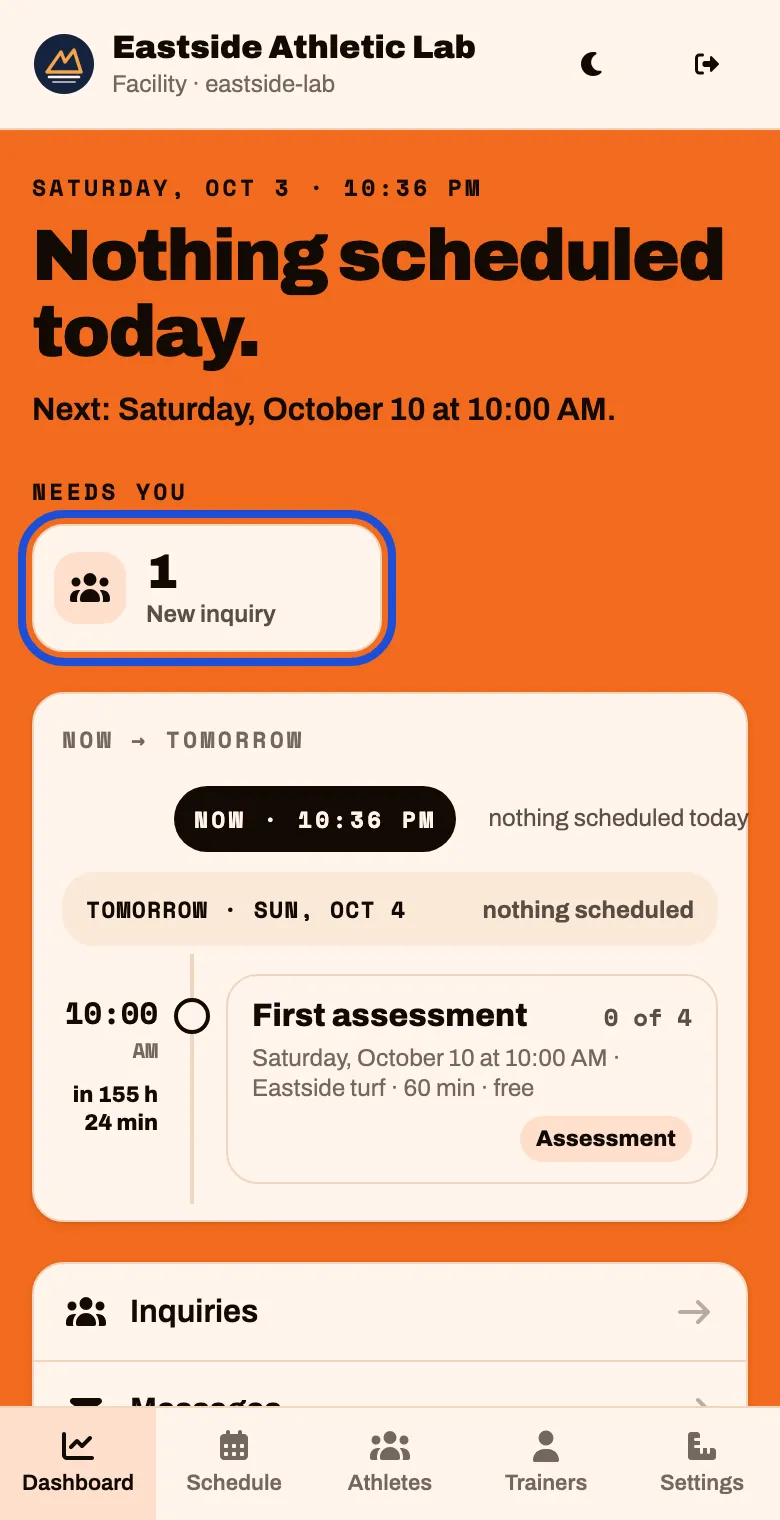
Open your Dashboard. Under Needs you there is a New inquiry tile. Tap it.
You also get an email called New inquiry.
Read the inquiry: who it is for, what they want to work on, and how to reach them.
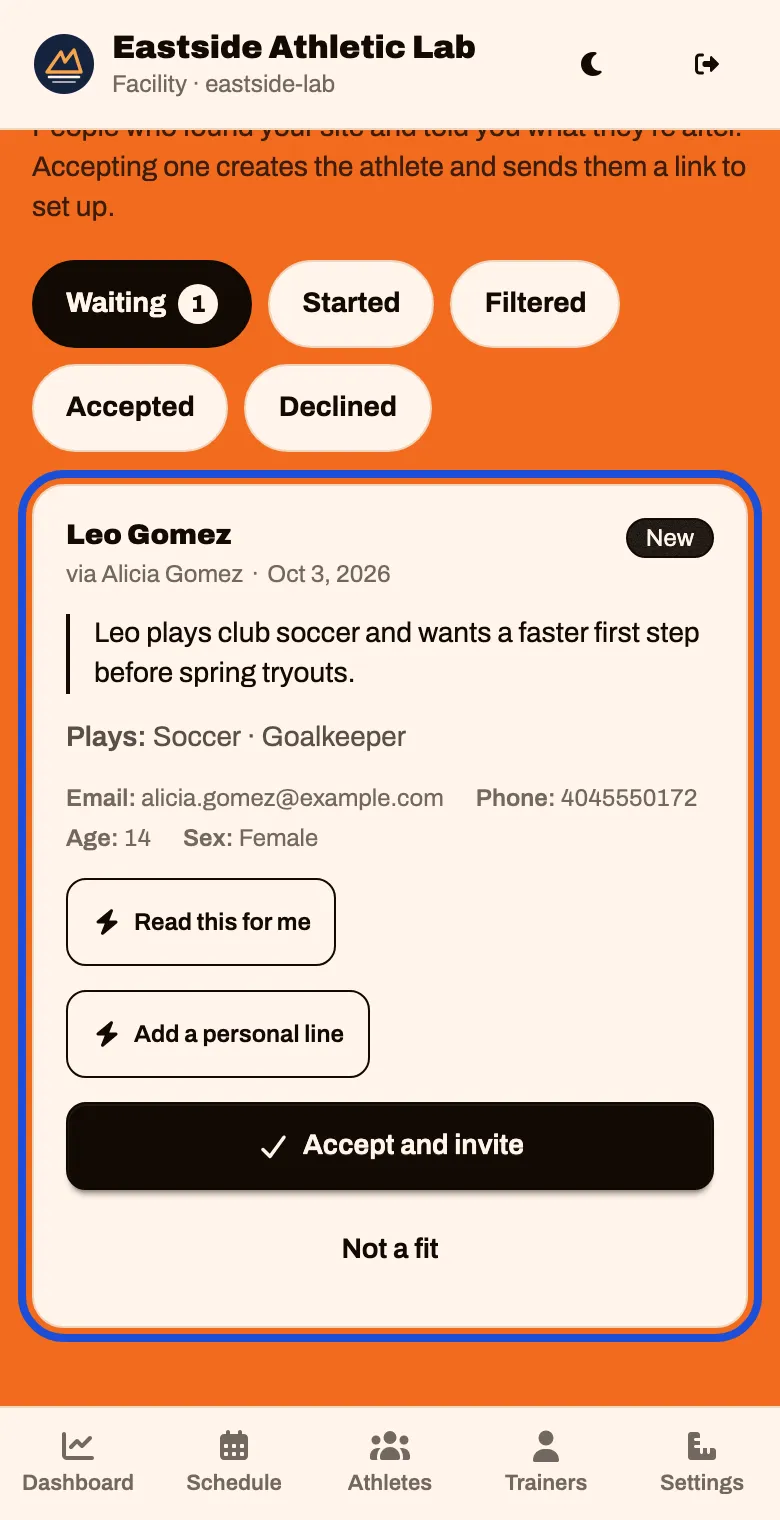
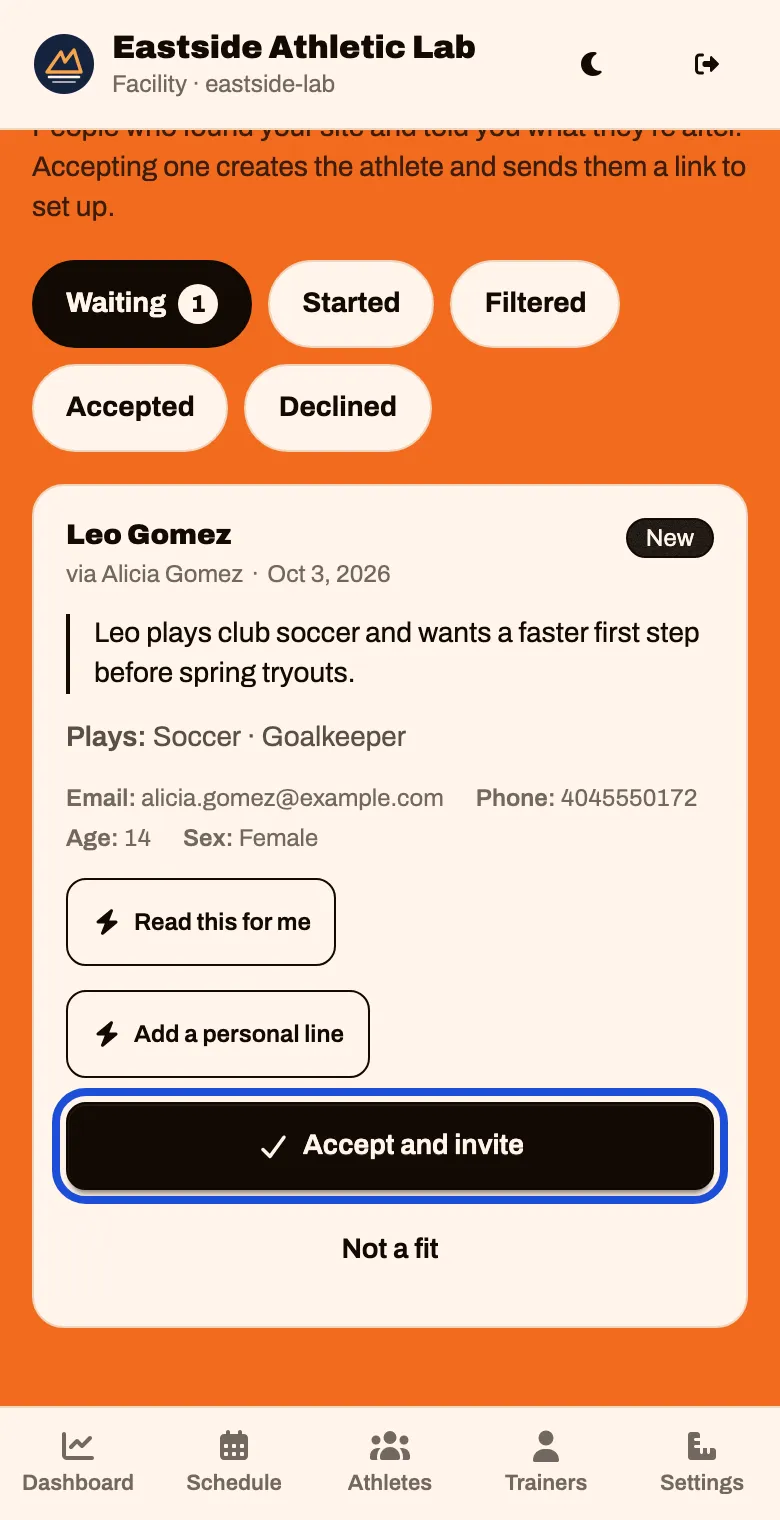
Tap Accept and invite
This adds the athlete and the parent to your roster, and sends the parent an invitation by email and text.
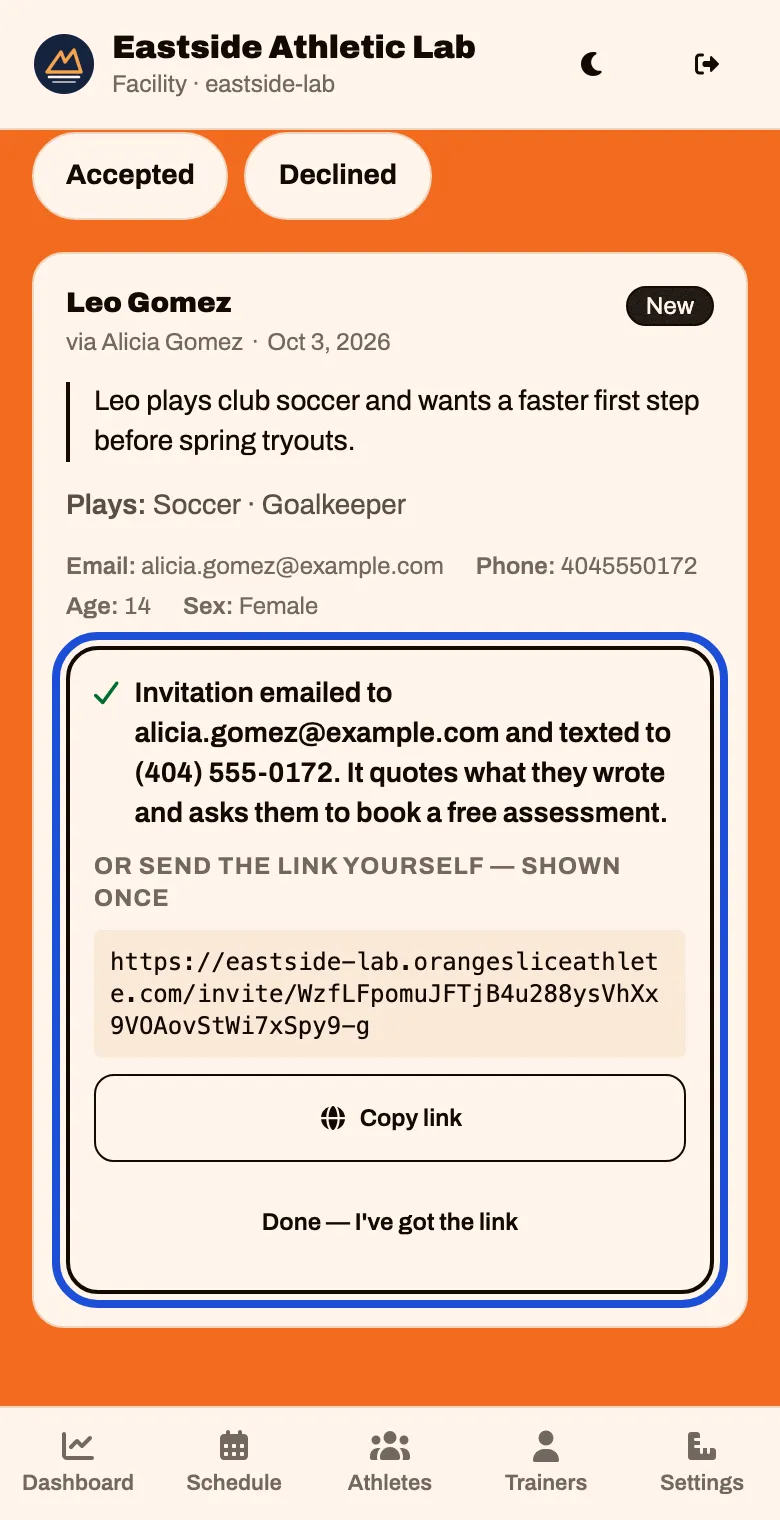
It confirms where the invitation went. Tap Done — I’ve got the link
Be the parent again
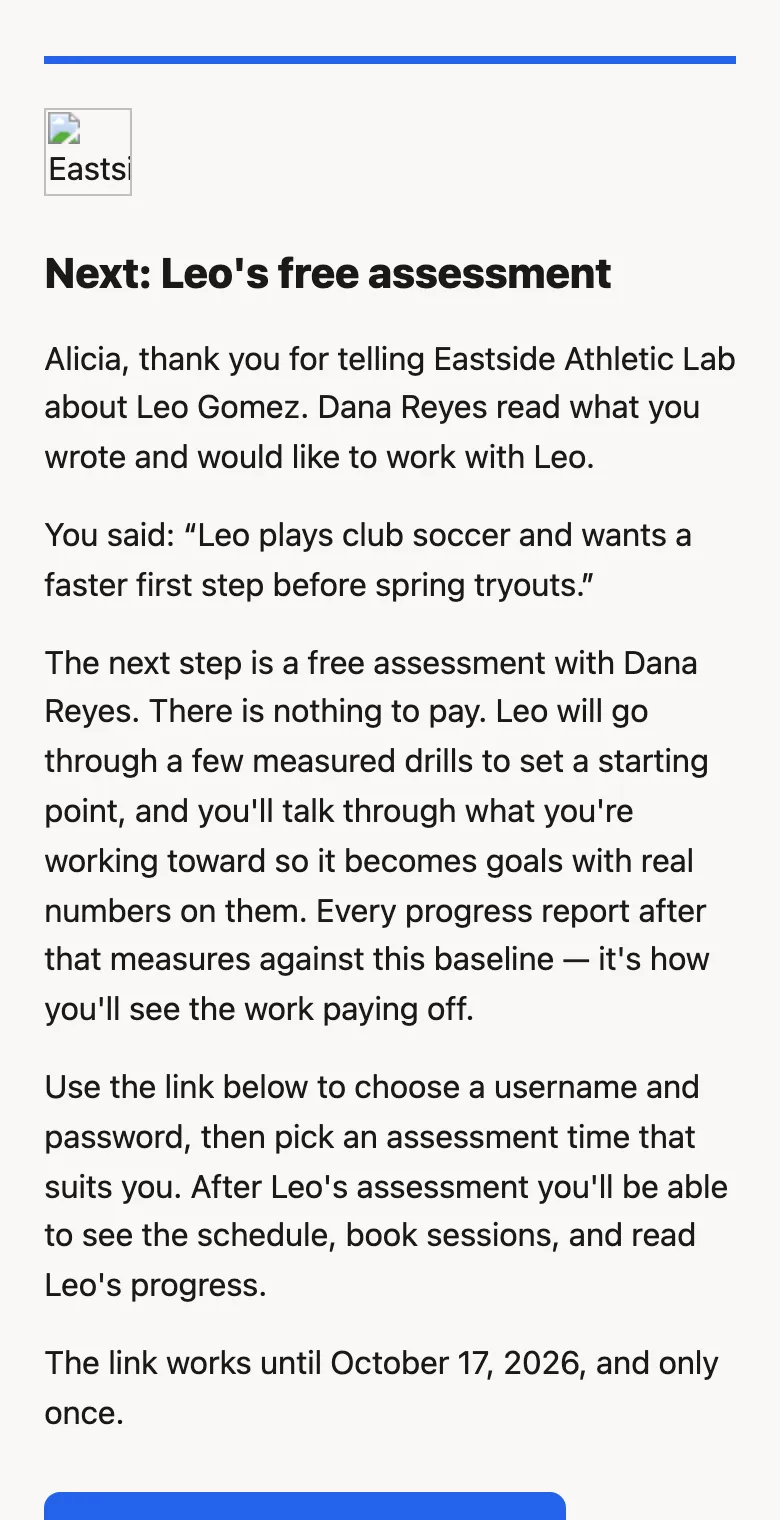
Open the invitation in your other email and tap the button in it.
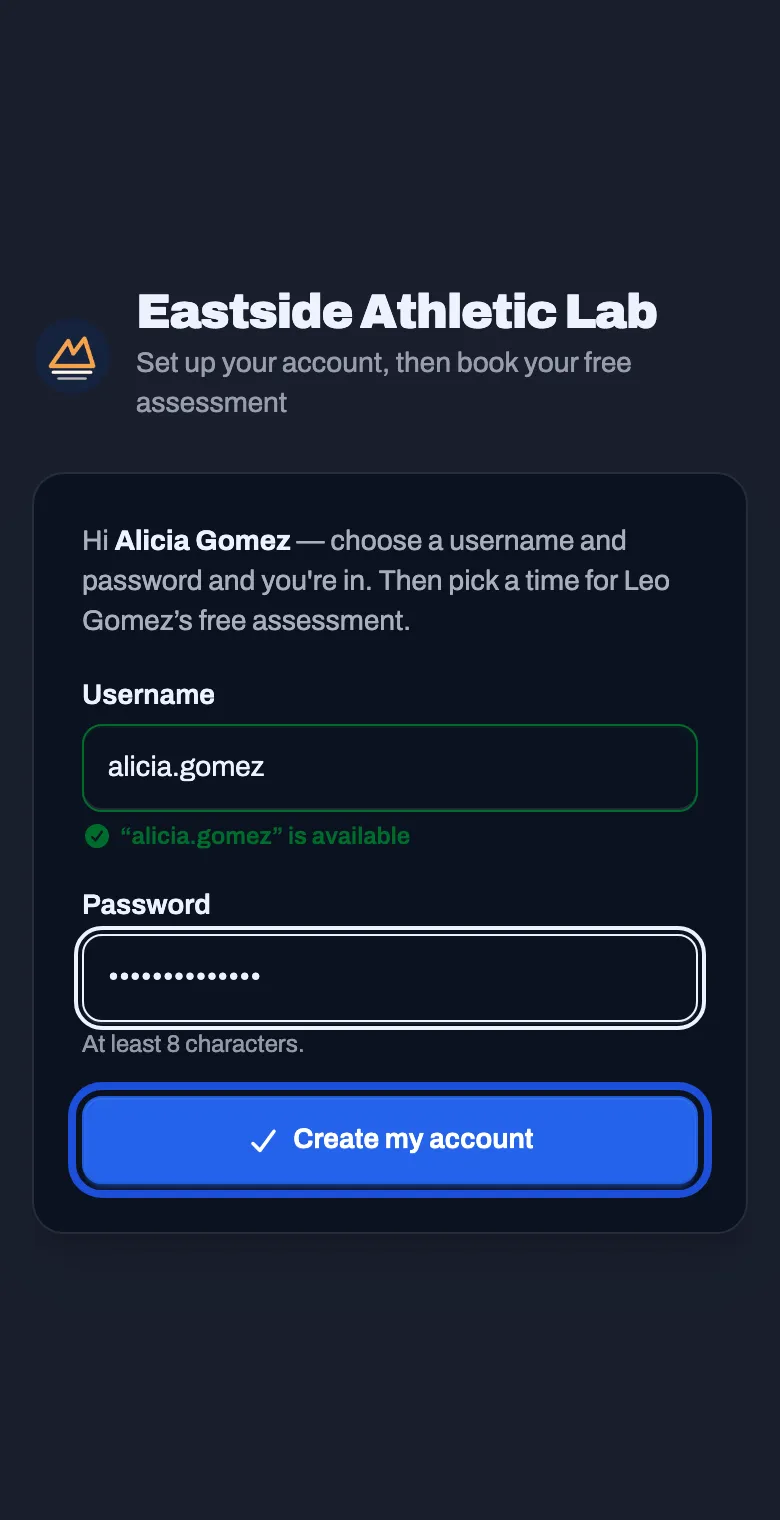
Choose a username and a password. Tap Create my account
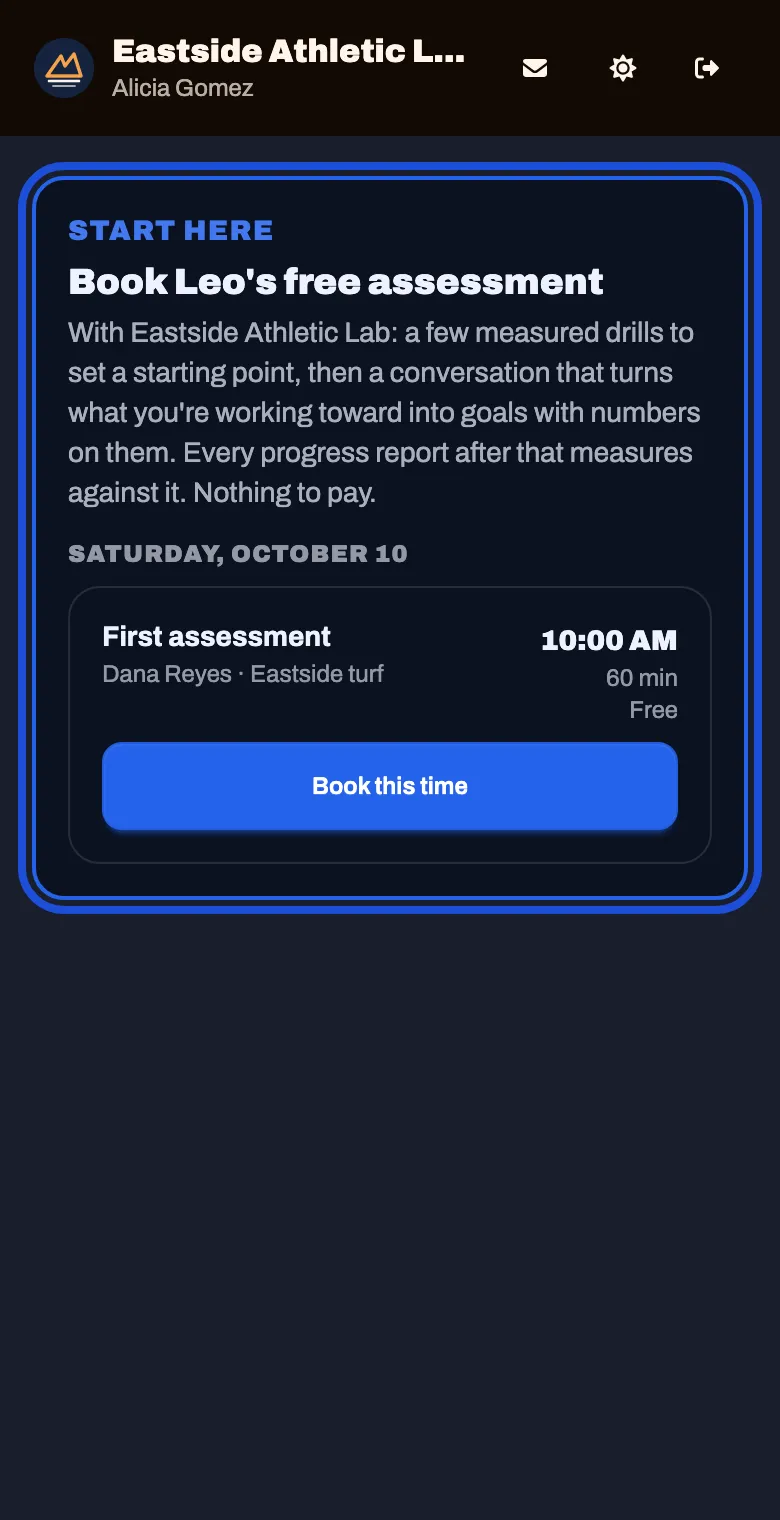
The family lands on one thing to do: book the assessment. Tap Book this time
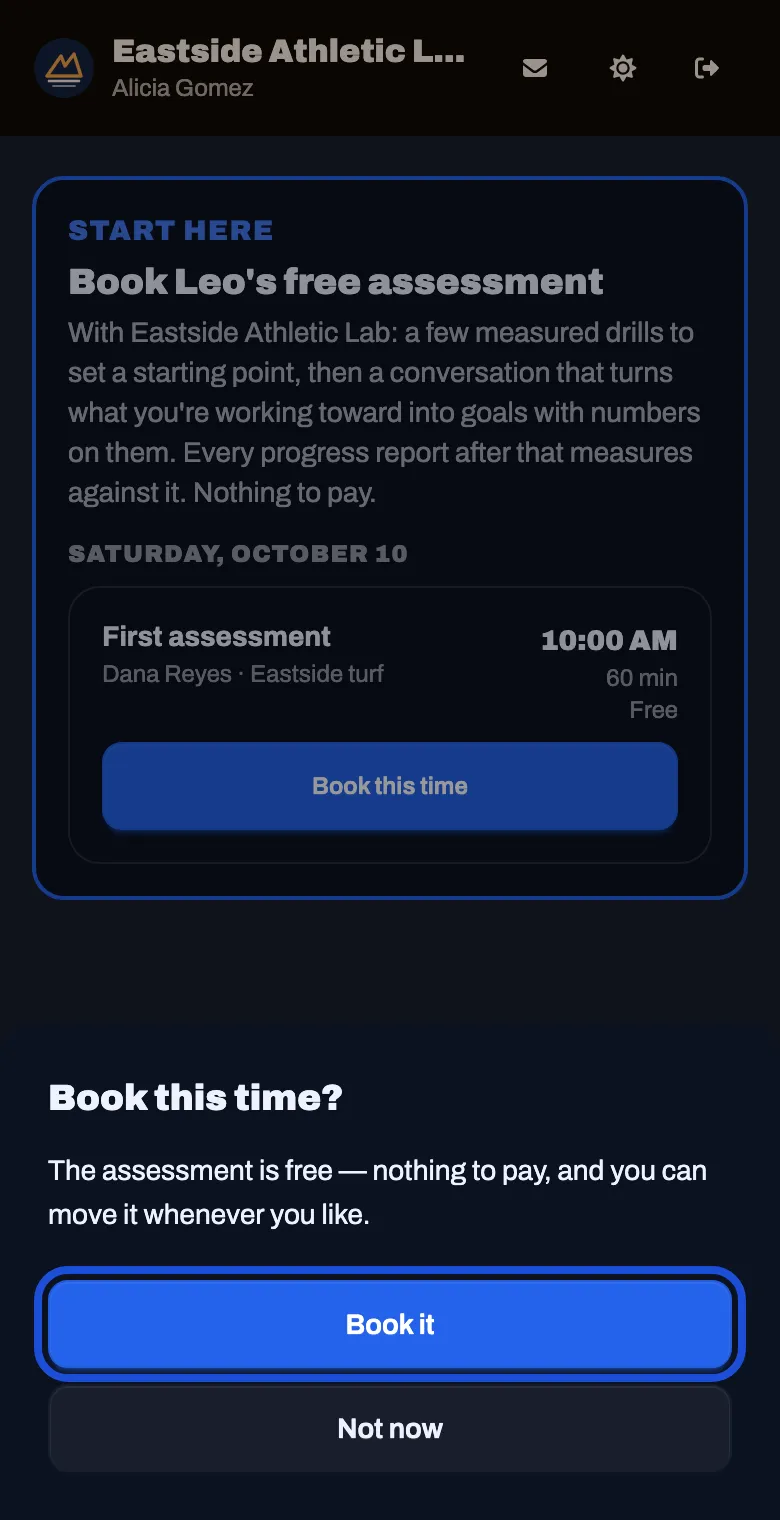
Tap Book it
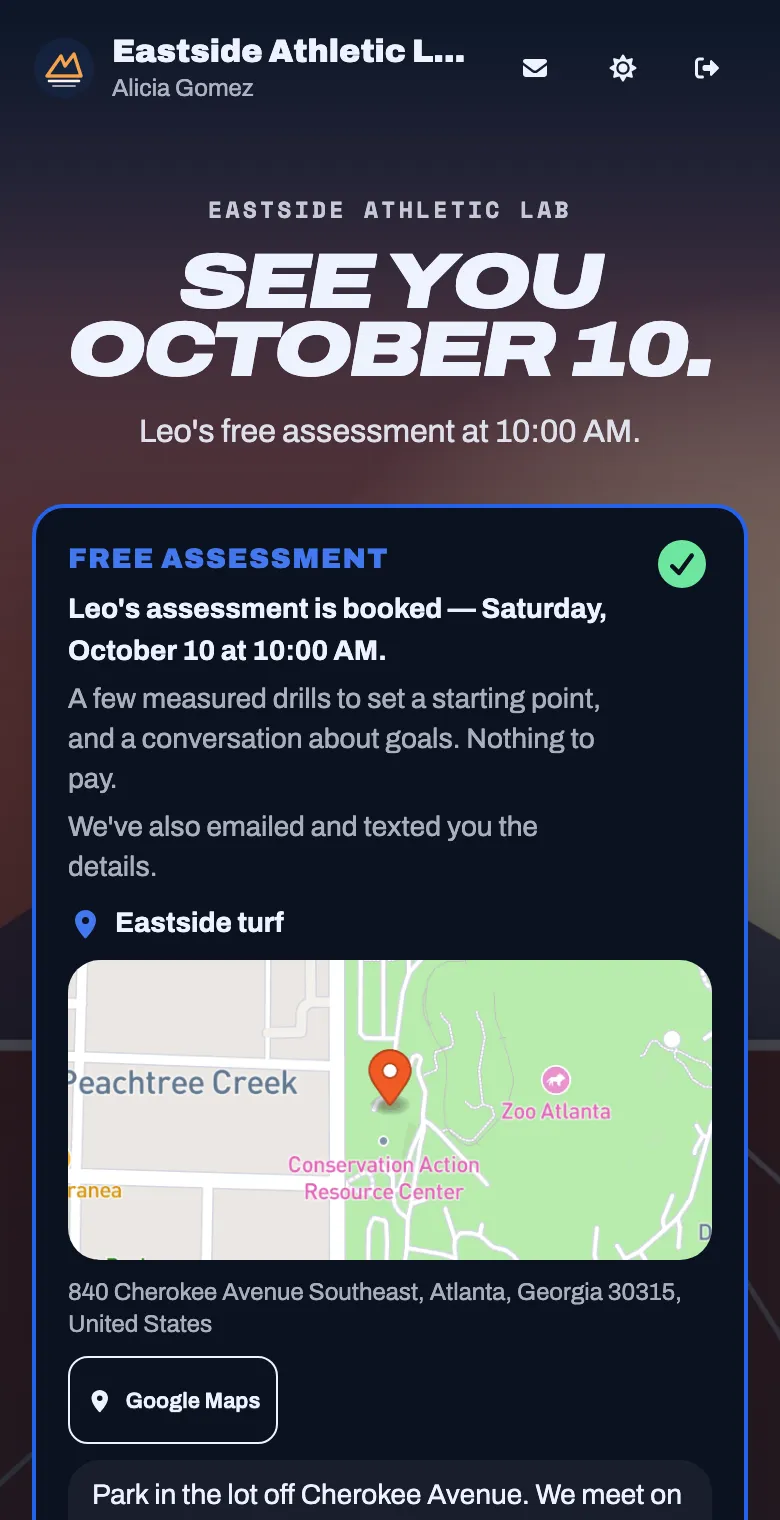
The family sees when and where, with your directions.
See it on your side
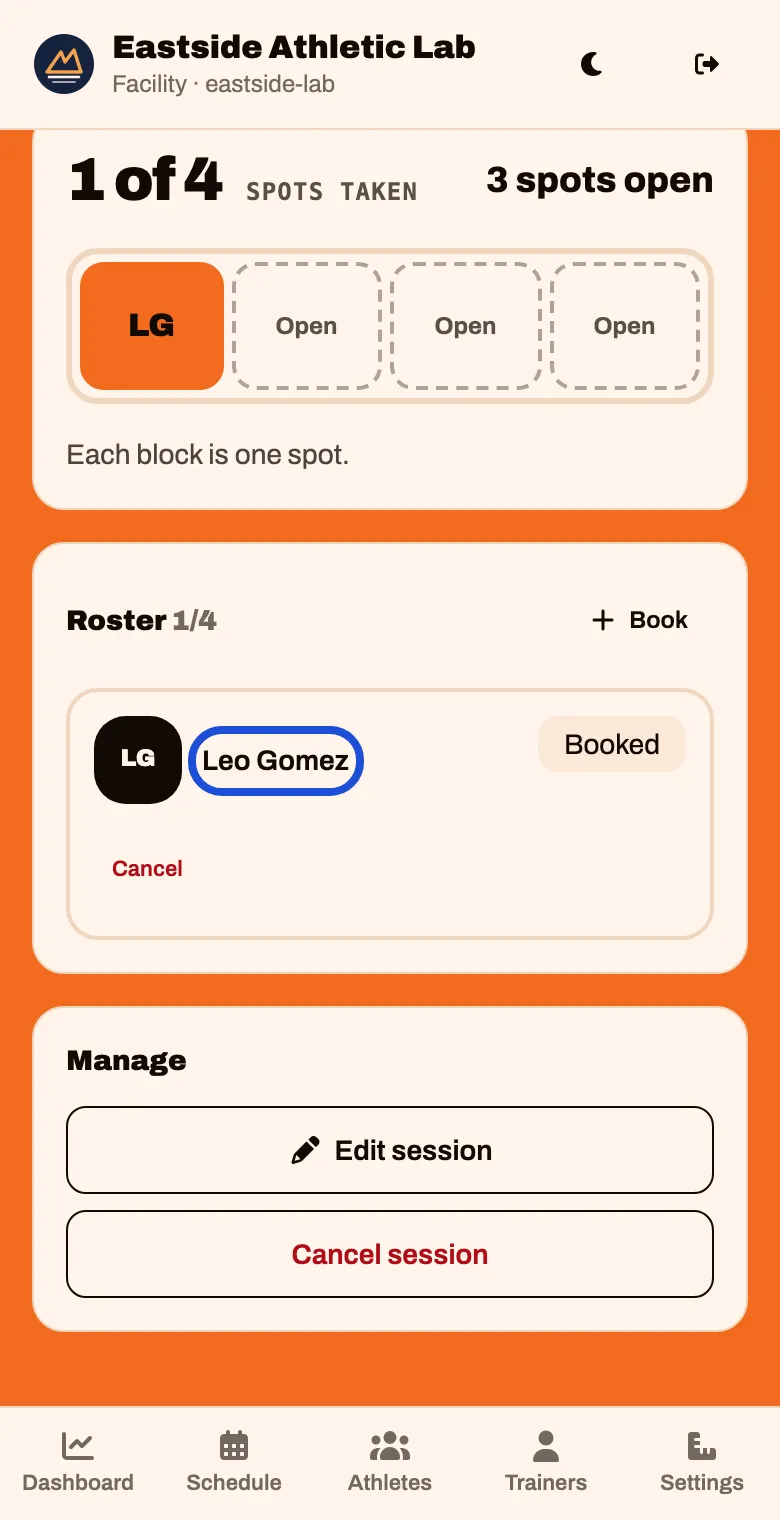
In the console, tap Schedule and open the assessment. Your test athlete is on the Roster.