Facility · Step 8 of 13
Put sessions on your schedule
An assessment time for new families first, then your classes, each with its trainer.
About 15 minutes
Two things go on the schedule: at least one assessment time, so a new family has something to book, and then your regular classes.
Only families you have invited can see your schedule. Your public page never shows it.
Add an assessment time first
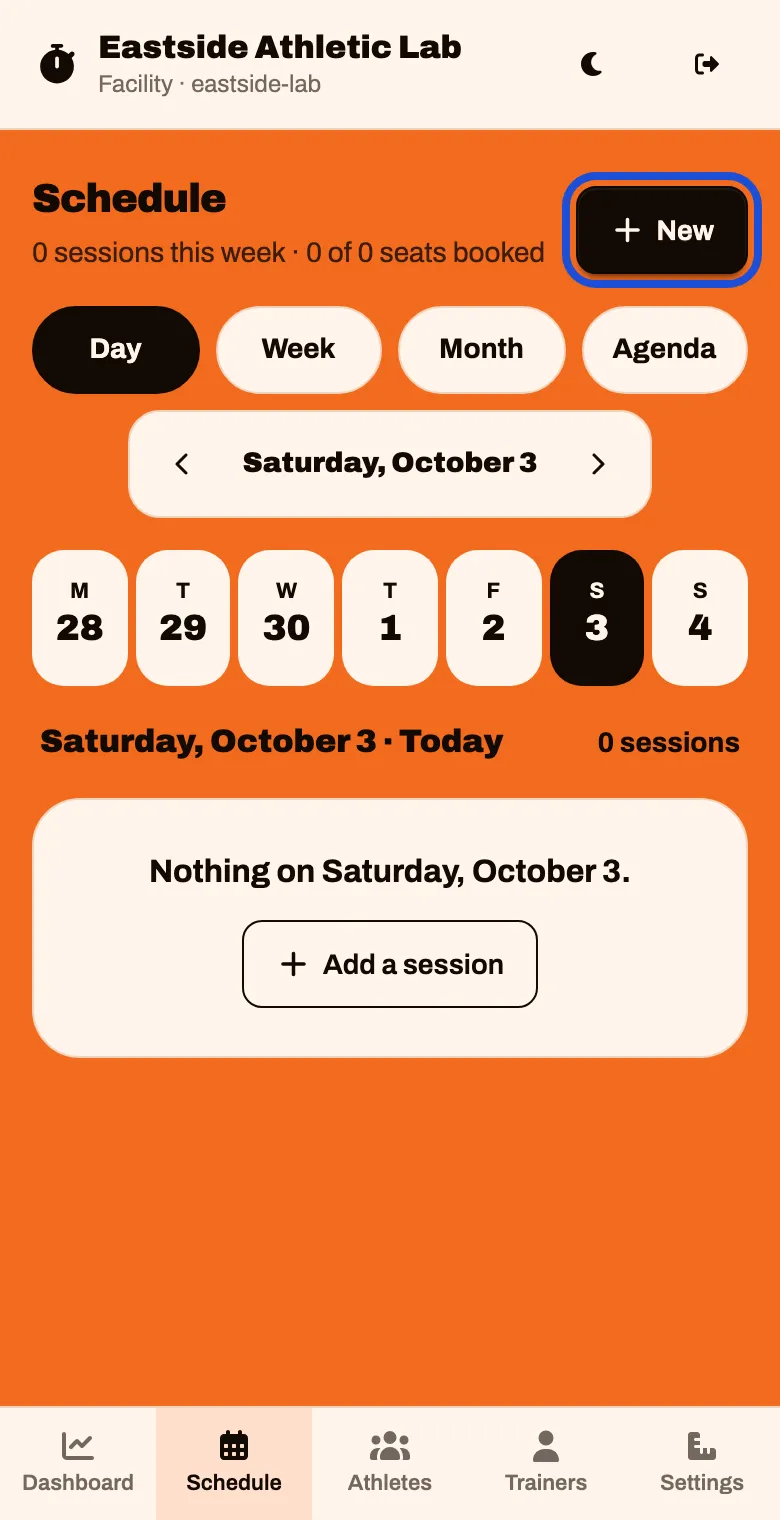
Tap Schedule in the bar at the bottom, then tap New
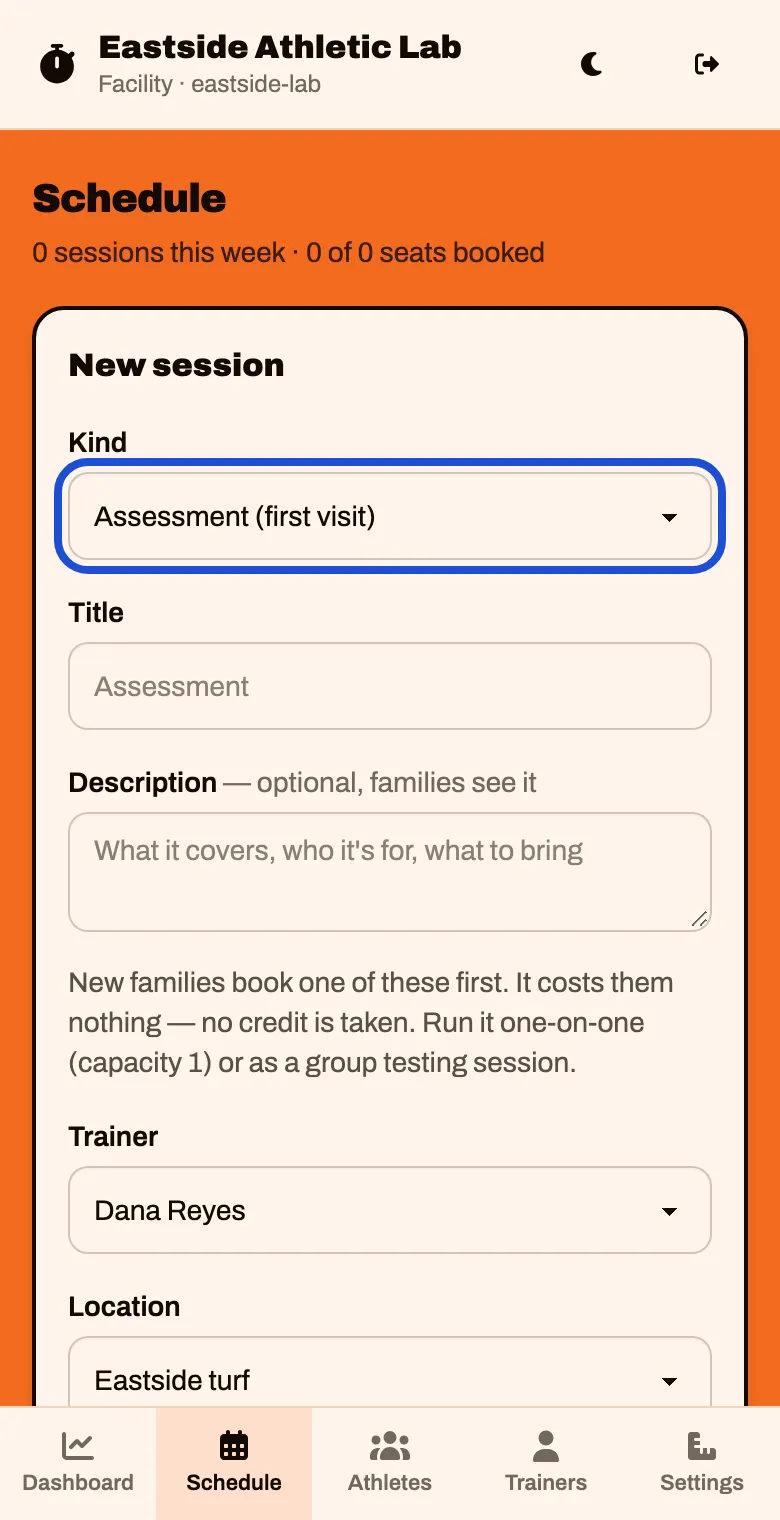
Under Kind, choose Assessment (first visit).
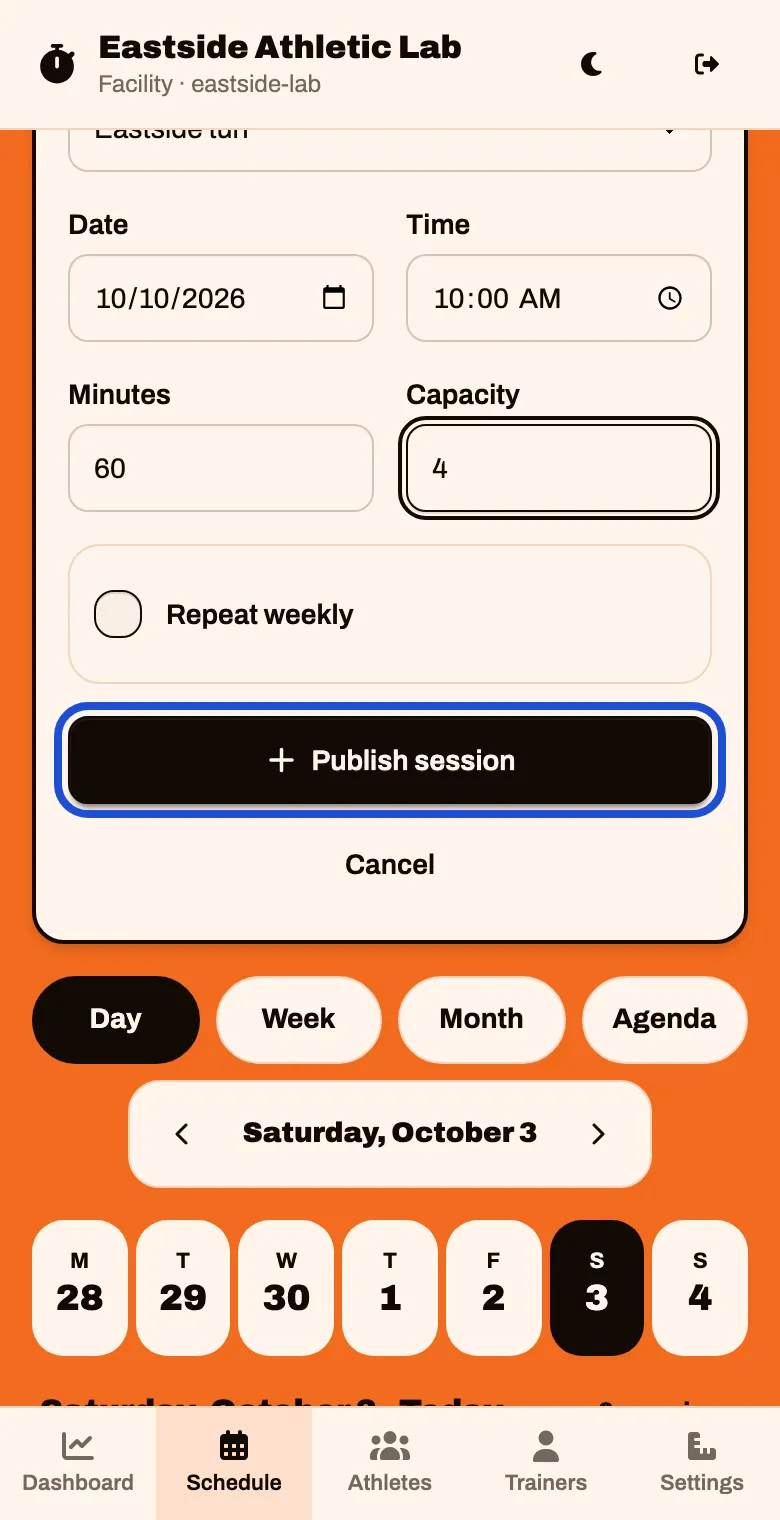
Set the Date, Time and Minutes. Set Capacity to 1 for a one-on-one, or higher to test a small group together.
Choose the Trainer who runs the assessment.
Tap Publish session
Add your classes
Tap New again. Leave Kind on Group session, or choose Individual session for a one-on-one.
Give it a Title, like “Speed & Agility”. Use the same title every time for the same class.
A plan limited to certain classes finds them by title.
Choose the Trainer who runs it.
The box starts on the first name in your staff list, which may not be yours. Check it on every session.
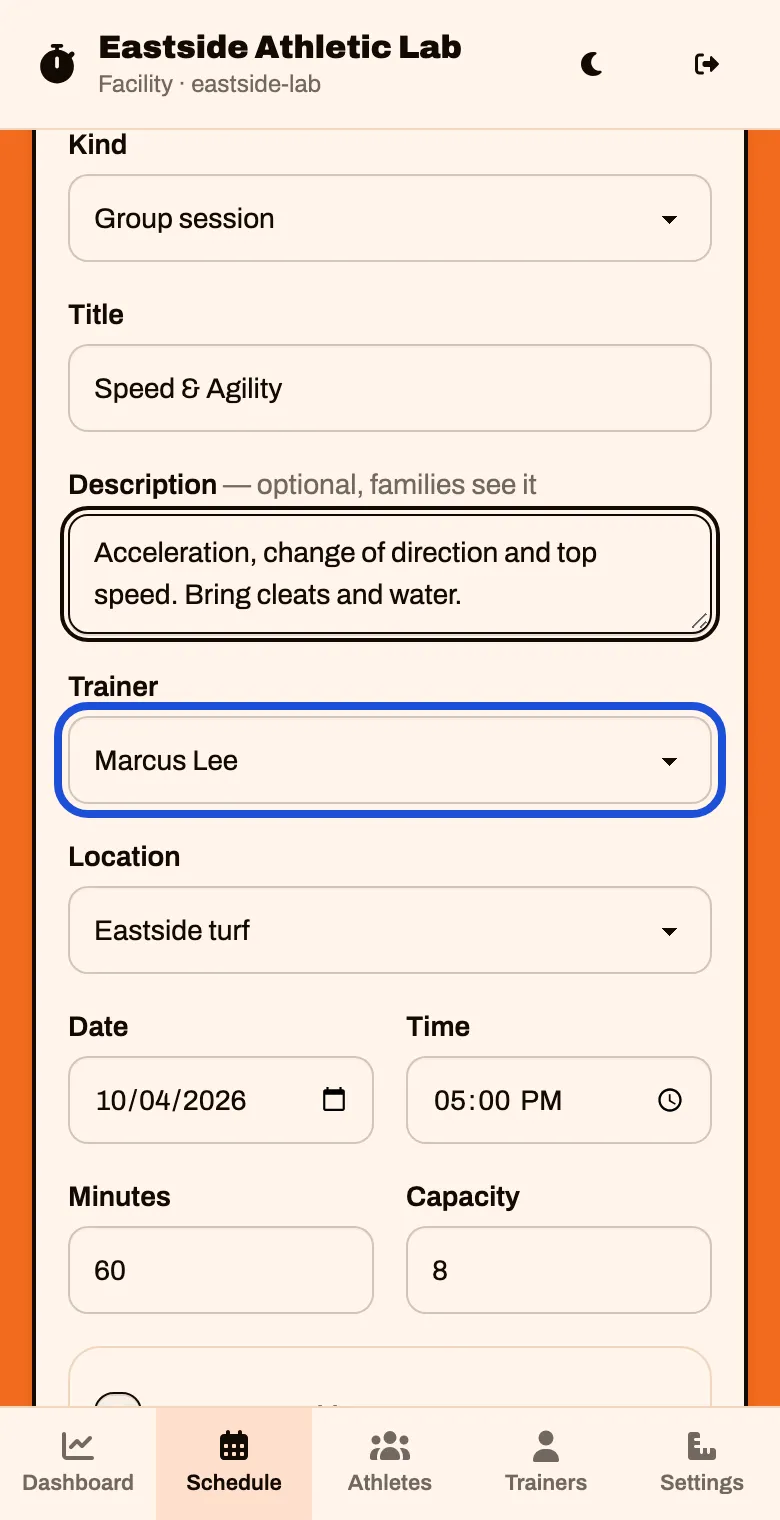
Add a Description if you like. Families see it: what it covers, who it is for, what to bring.
Set the first Date, the Time, Minutes and Capacity. For a weekly class, tick Repeat weekly and tap the days it runs.
How many is the total number of sessions to create.
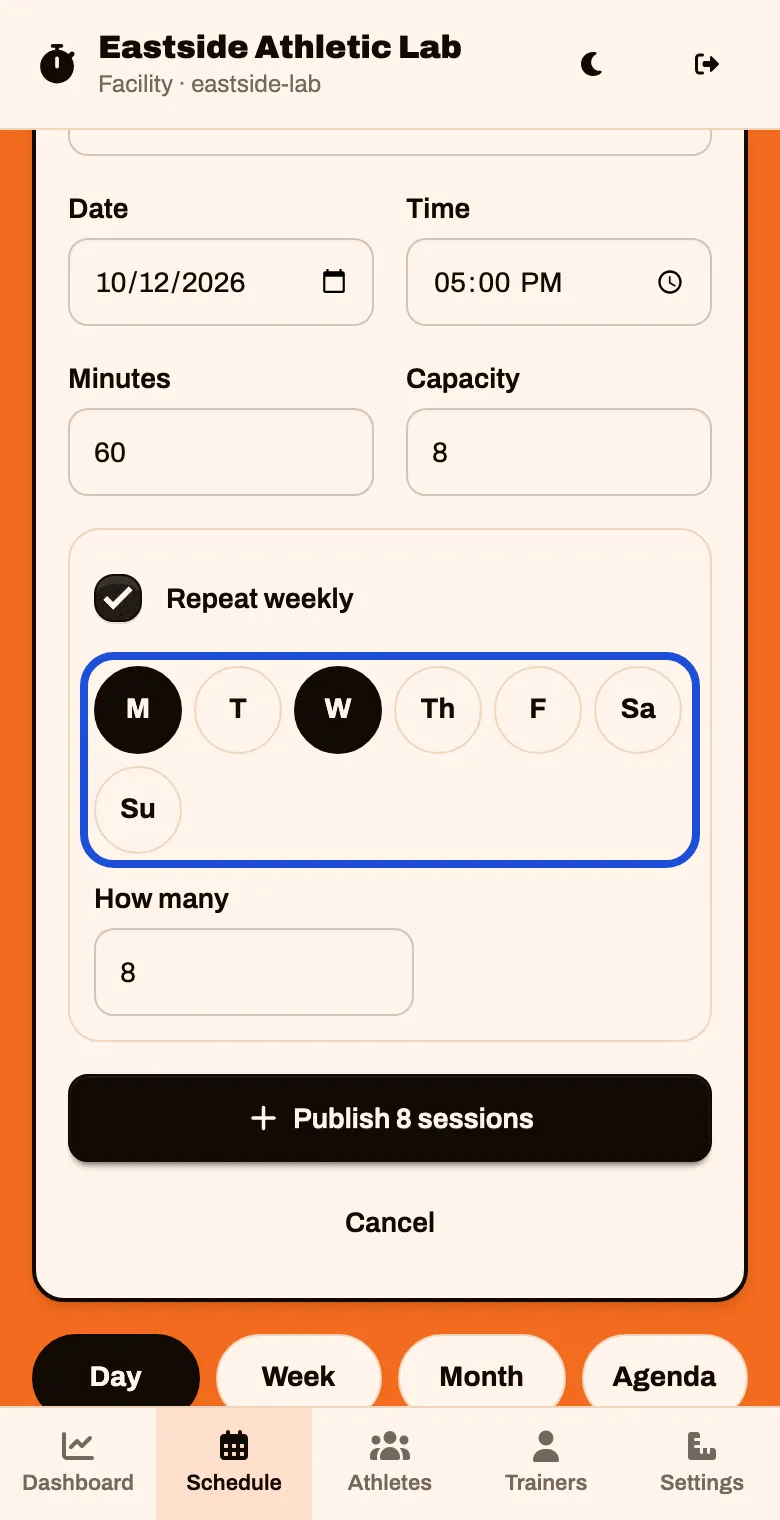
Tap Publish 8 sessions. The button shows your own number.
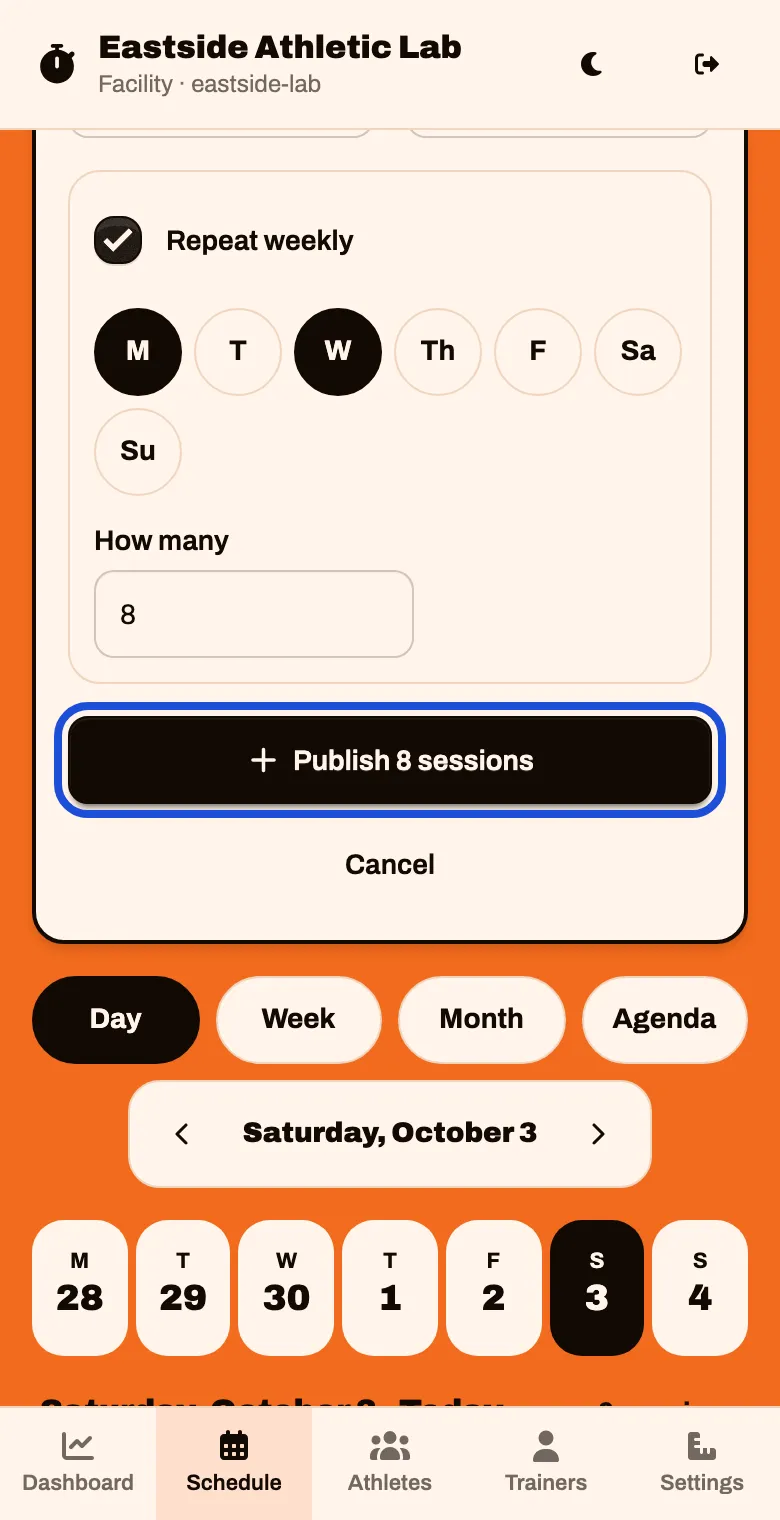
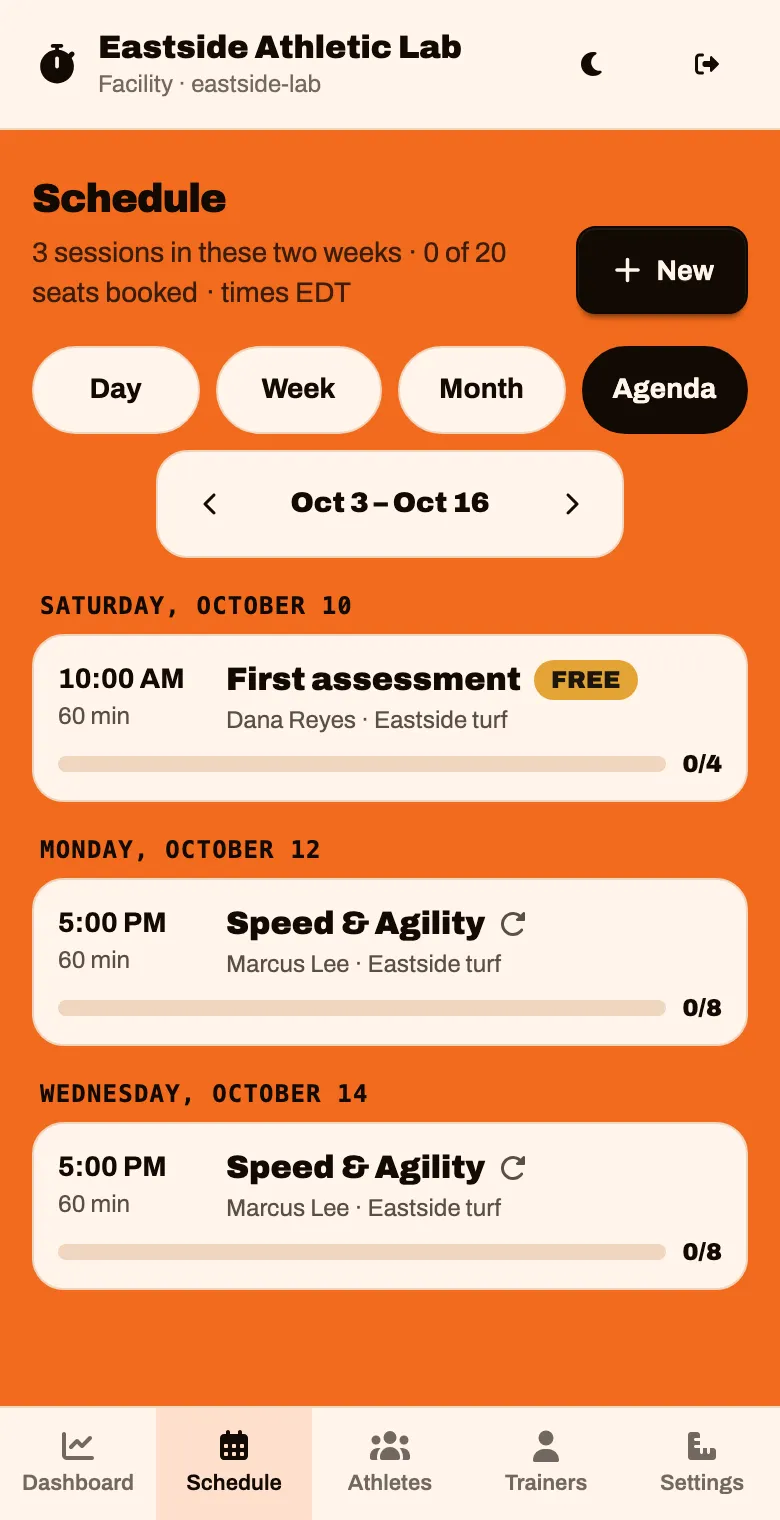
Tap Agenda to see everything you published in one list.