You've been invited as a trainer
Your facility uses OrangeSlice Athlete for its schedule, athletes and testing. Here is how to get in and get set up, in about ten minutes.
About 10 minutes
The owner of your facility added you and sent you an invitation by email, by text, or both. This page is your side of it.
Set up your sign-in
Section titled “Set up your sign-in”Open the email called set up your trainer sign-in and tap Set up my sign-in
The text message has the same link. Use either one.
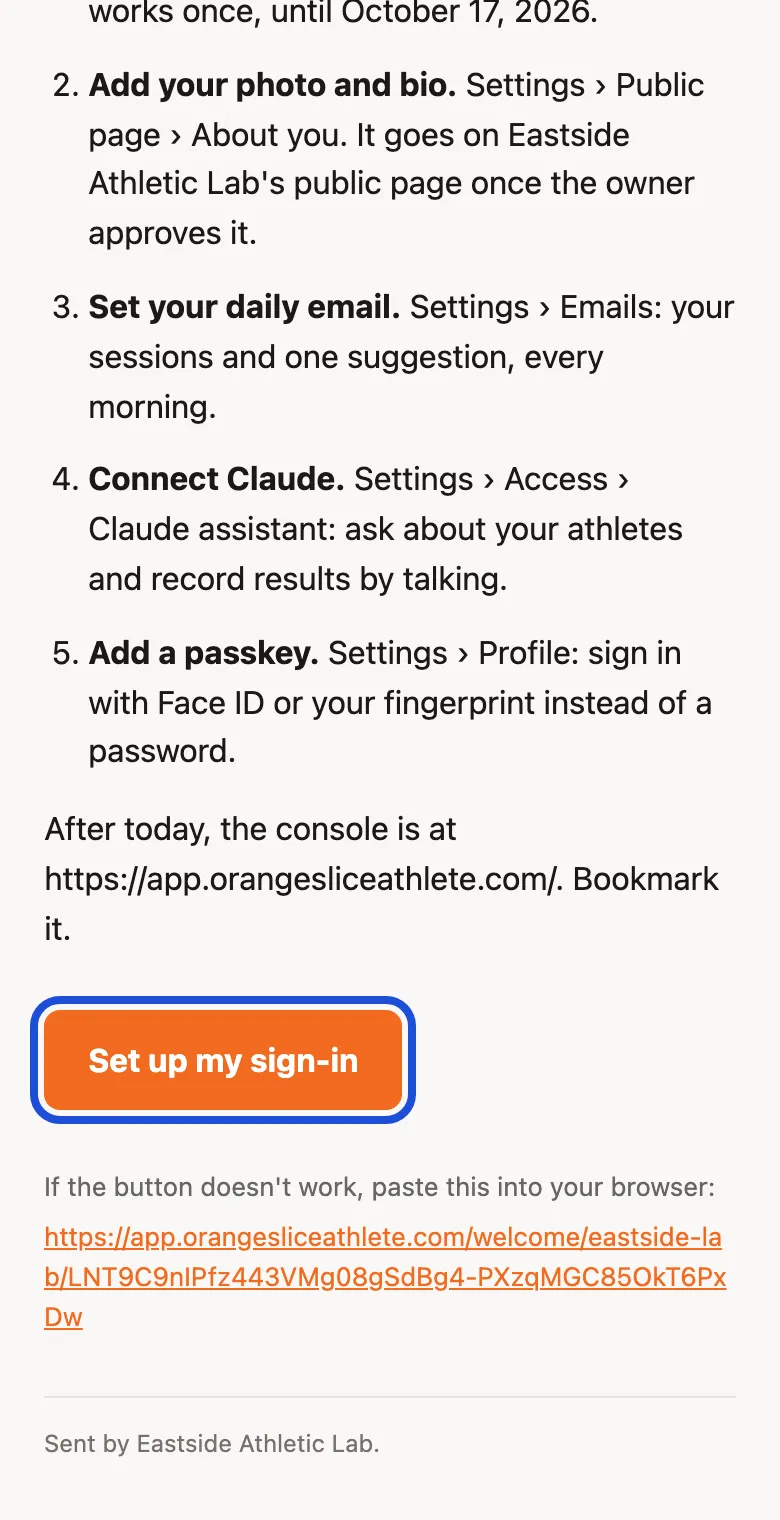
Choose a username and wait for the green line that says it is available. Type a password of at least 8 characters. Tap Set up and sign in
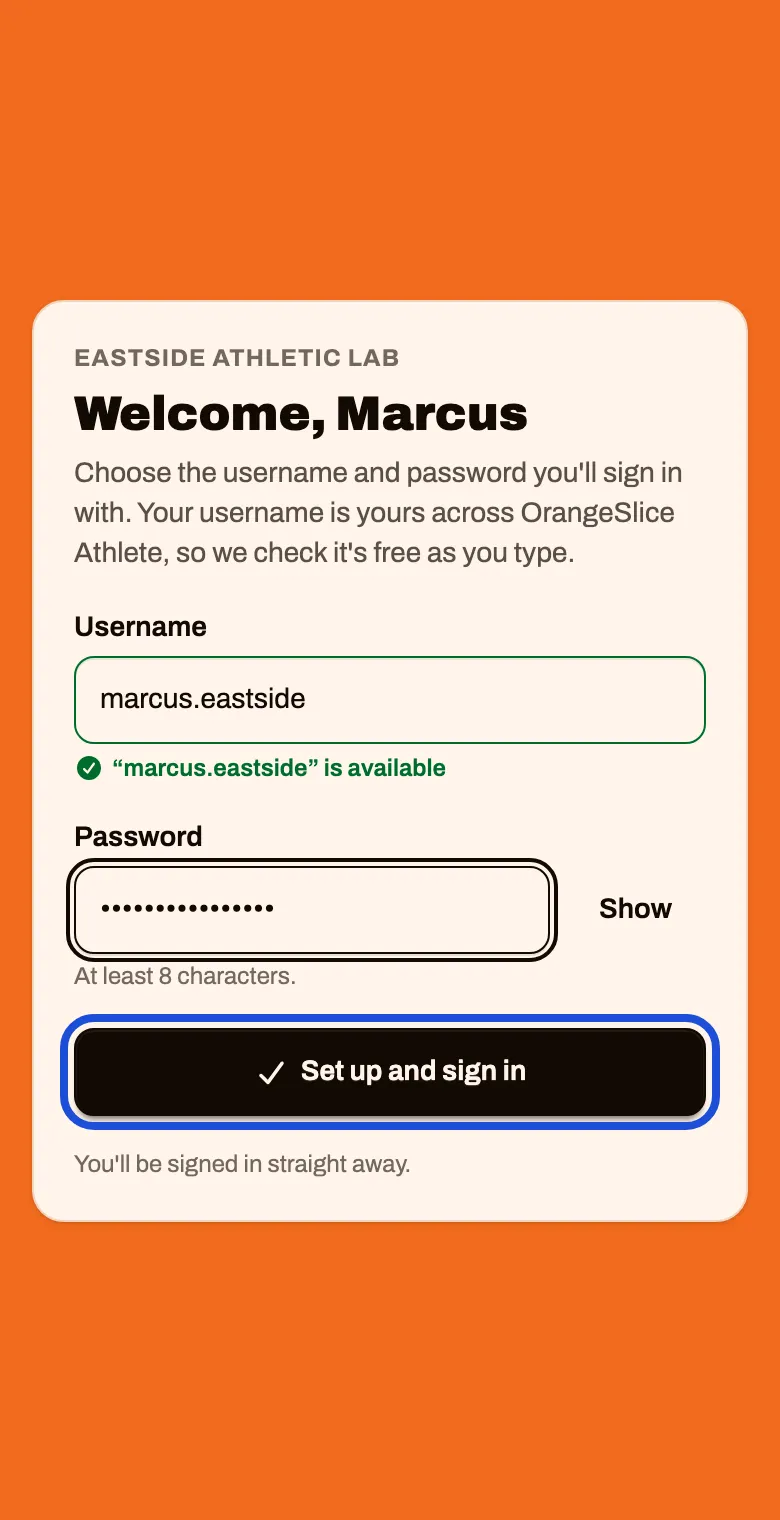
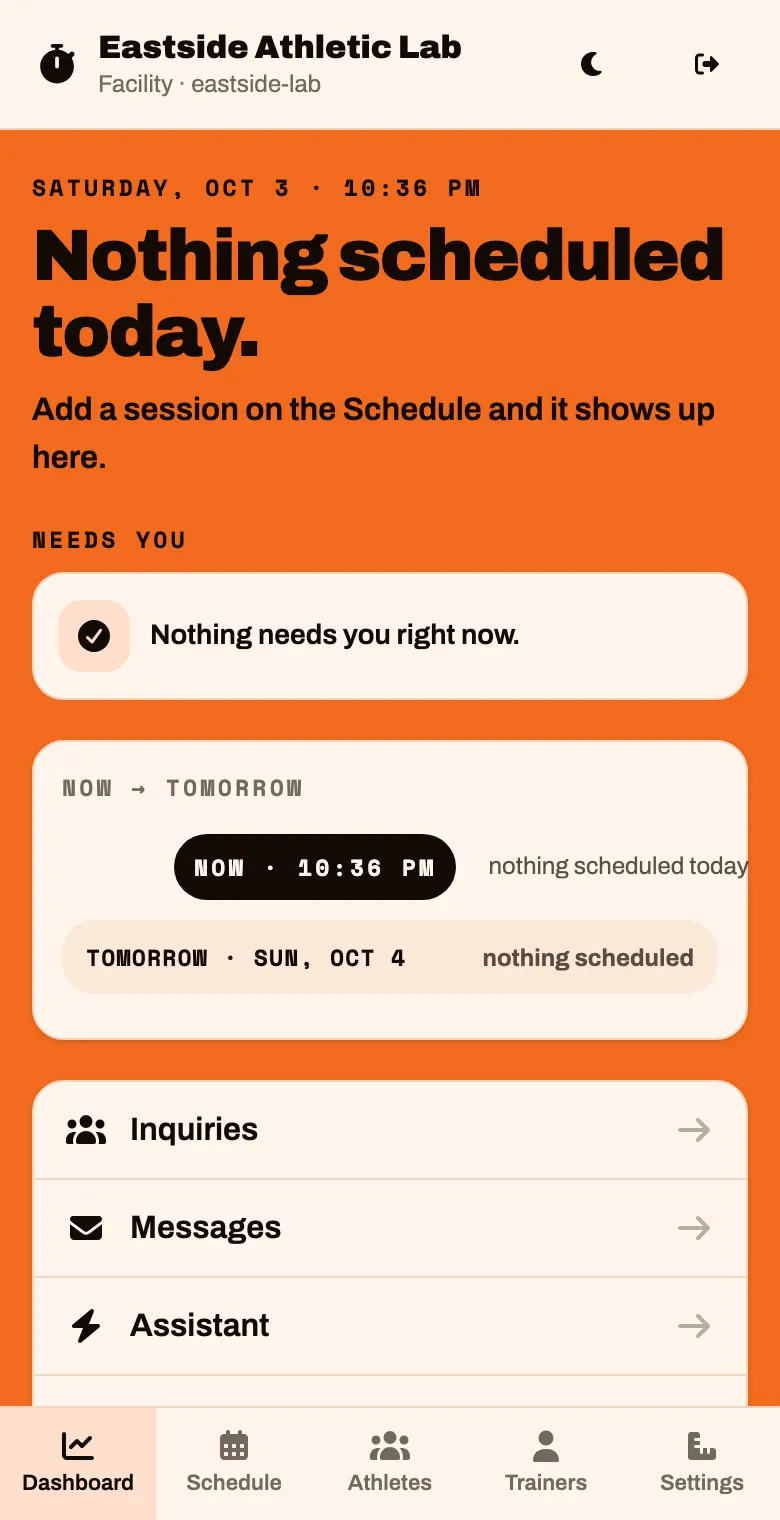
You are in. This is your Dashboard: what is on today and what needs you.
Add your photo and bio
Section titled “Add your photo and bio”This is what a parent reads about you on your facility’s public page.
Tap Settings, then Public page, and scroll to About you.
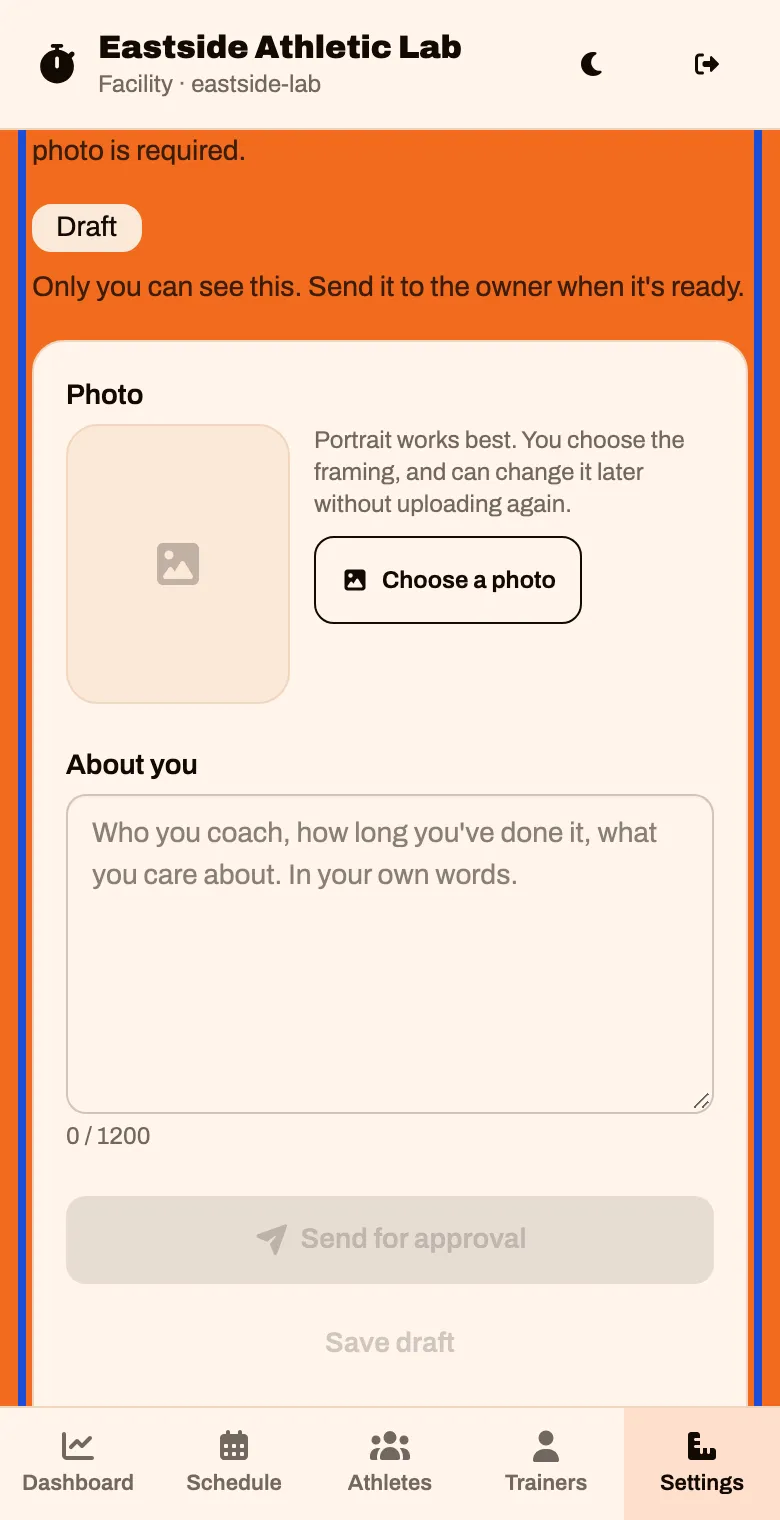
Add your Photo and write a few lines under About you: who you coach, how long you have done it, what you care about. Tap Send for approval
Both are needed. A portrait photo works best.
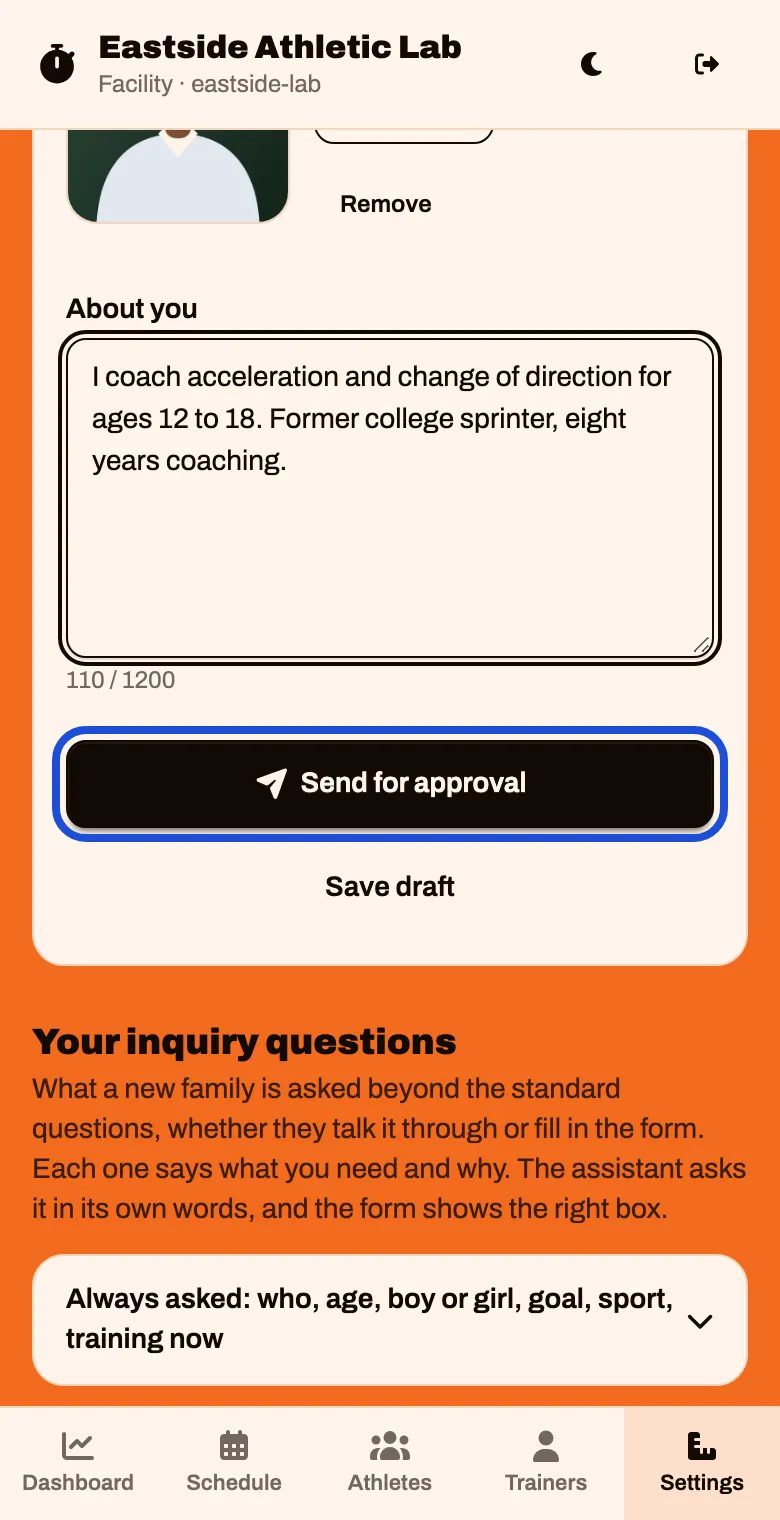
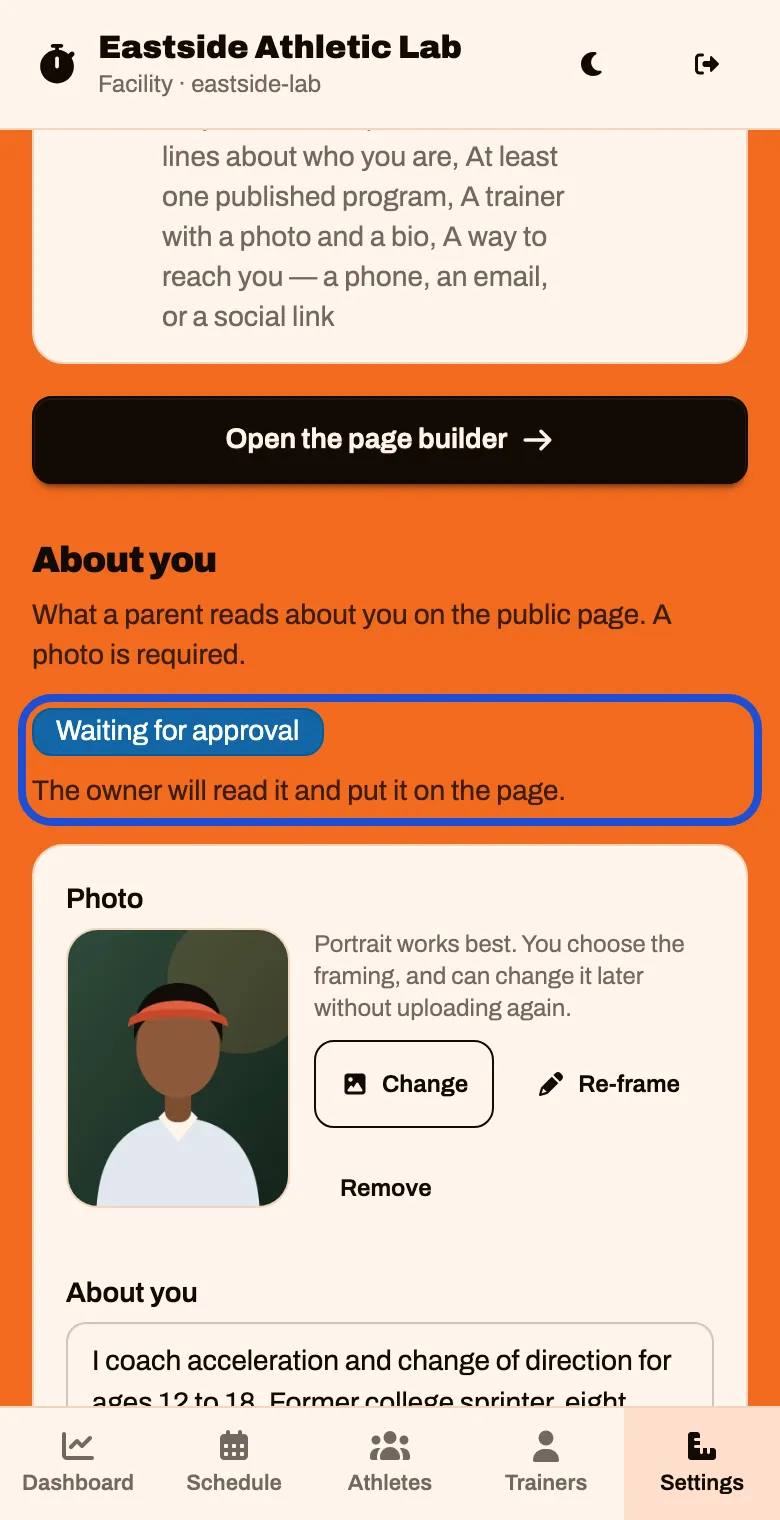
It says Waiting for approval. The owner reads it and puts it on the page. If they send it back, their note shows here.
Check how we reach you
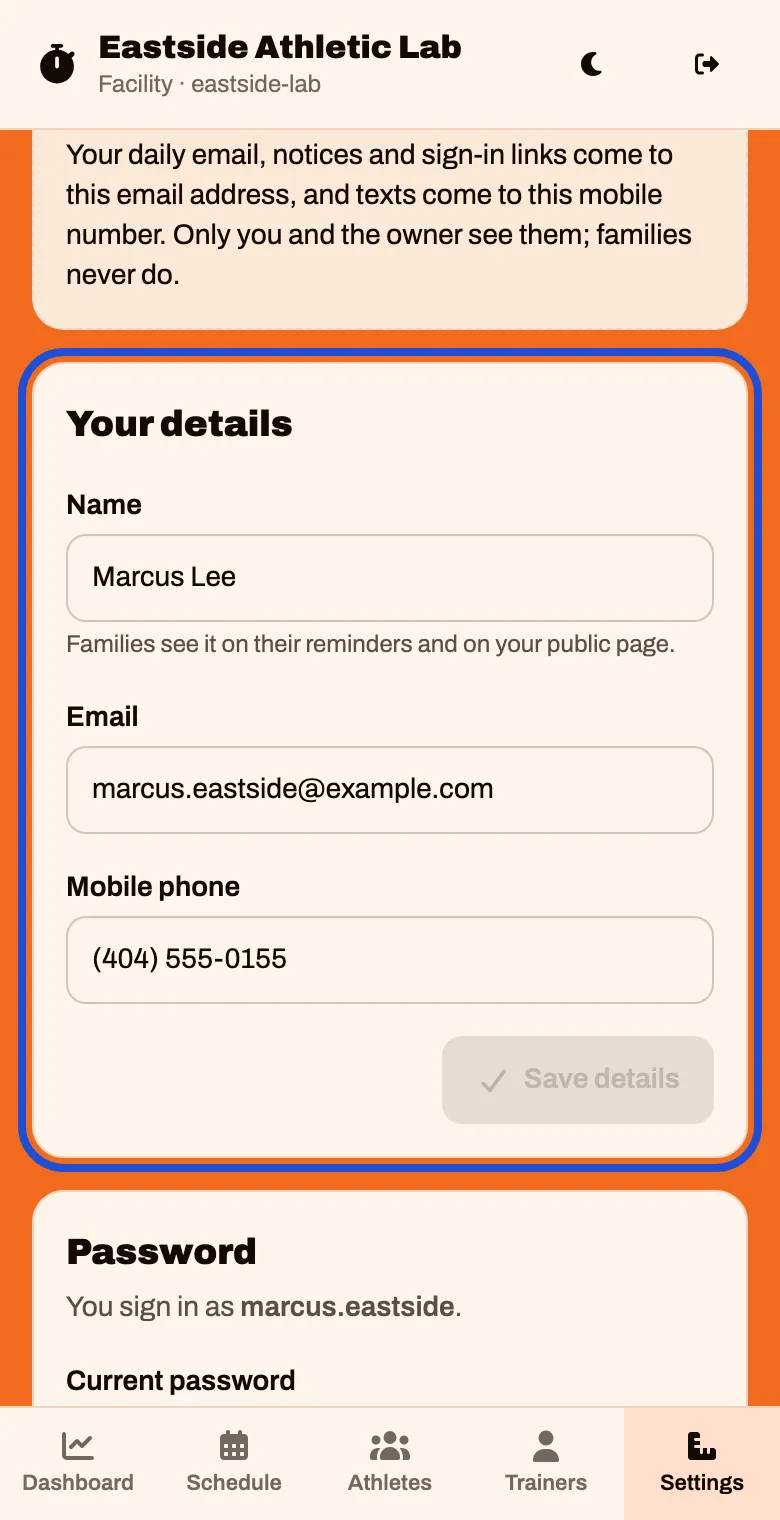
Section titled “Check how we reach you”In Settings, tap Profile. Check your Name, Email and Mobile phone. If you change anything, tap Save details
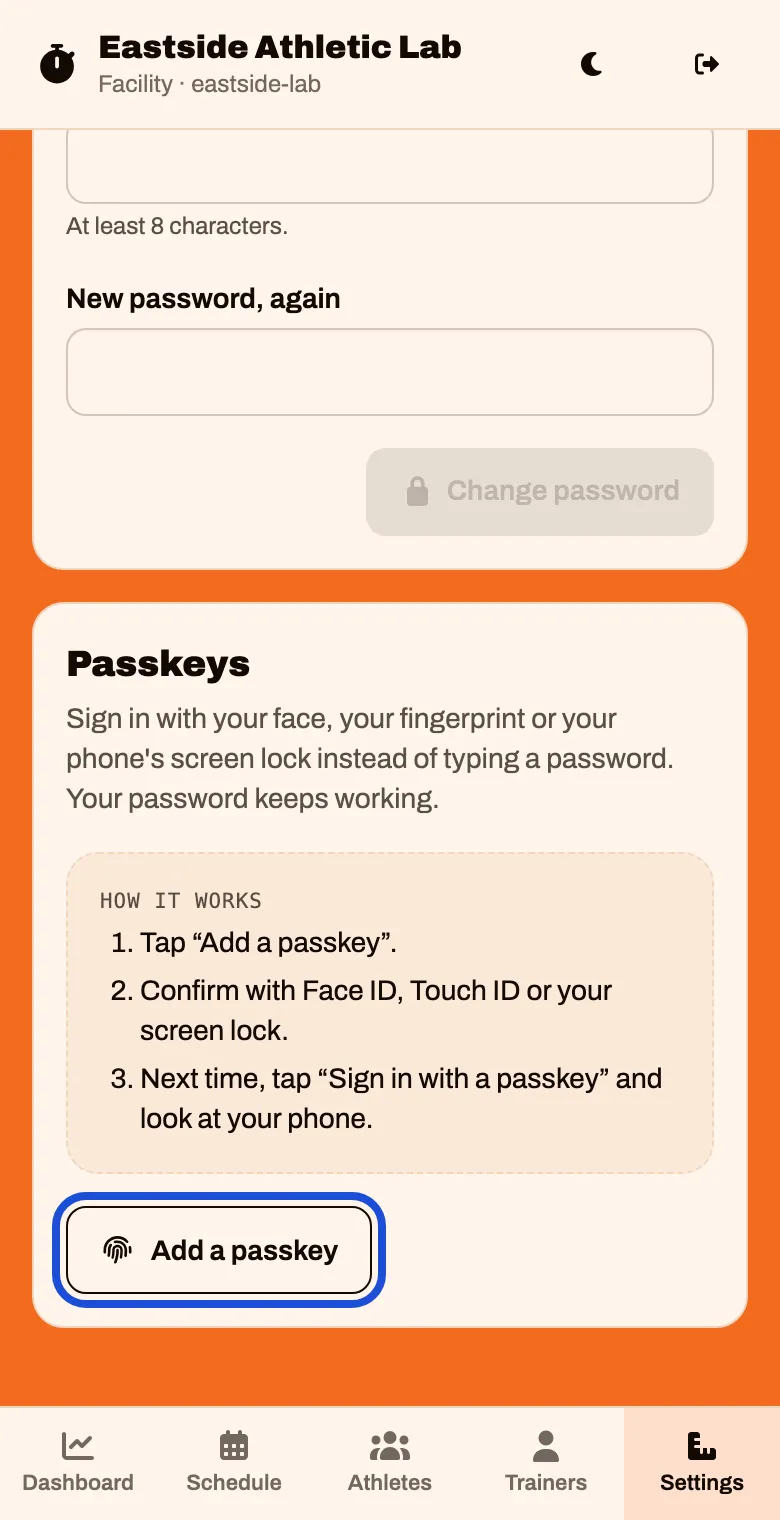
Scroll down to Passkeys and tap Add a passkey. Confirm with Face ID, Touch ID or your screen lock.
Next time you can tap Sign in with a passkey instead of typing your password. There is no “forgot password” link yet, so this is worth doing.
Set your morning email
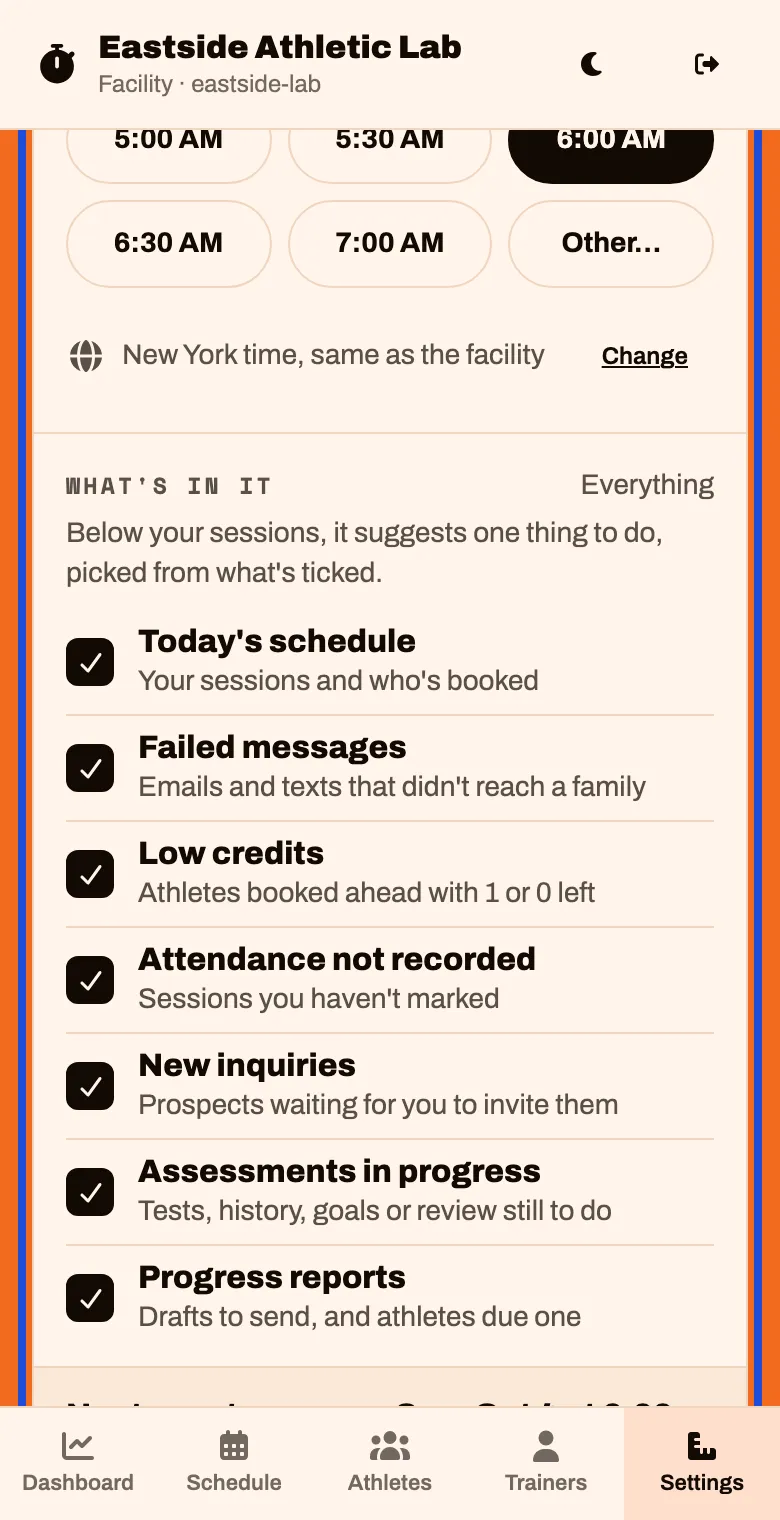
Section titled “Set your morning email”In Settings, tap Emails. Every morning you get your own sessions for the day, who is booked, and one suggestion. Tap the time you want under Arrives at.
Connect the assistant (optional)
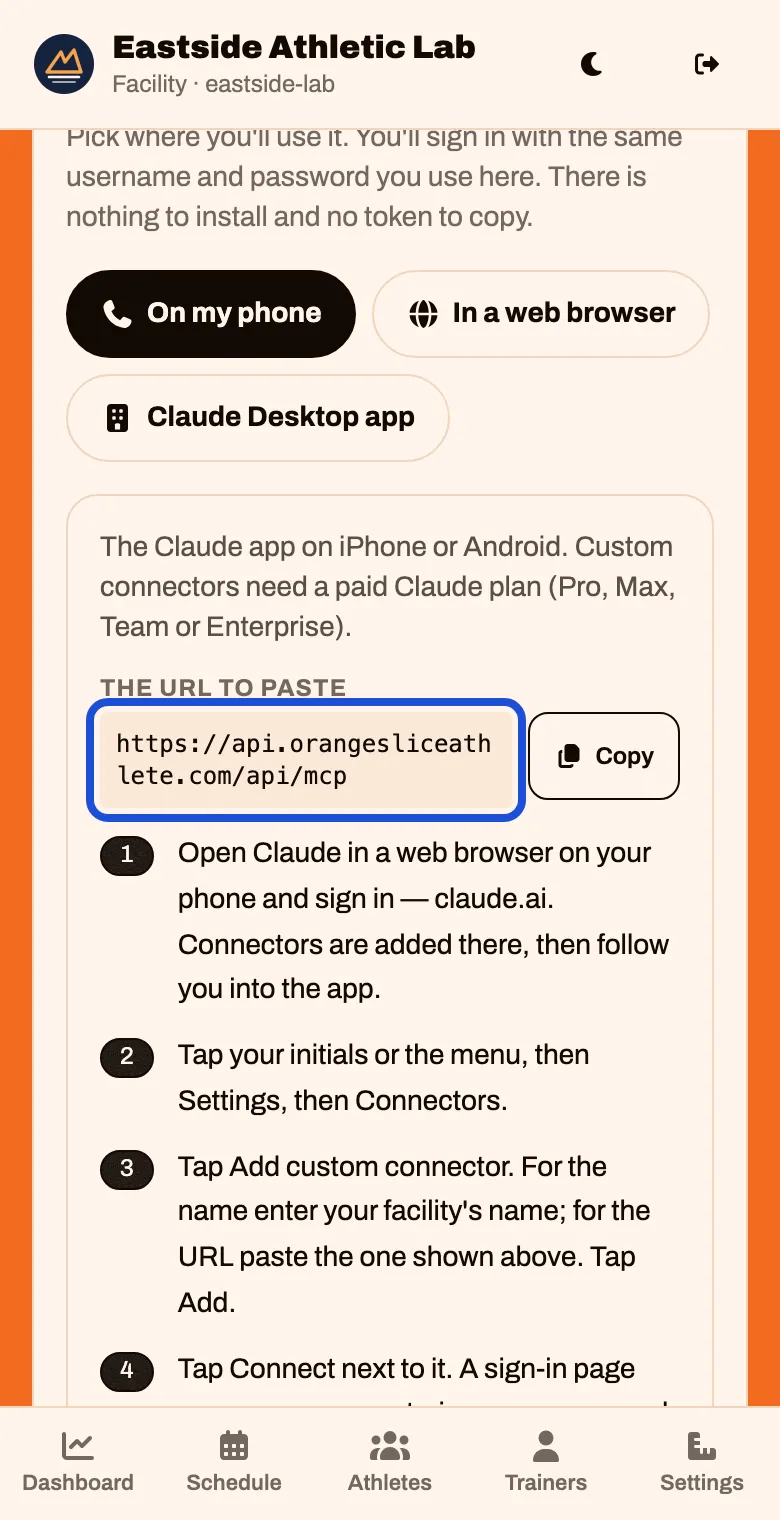
Section titled “Connect the assistant (optional)”You can run your day by talking: “What’s on my schedule this week?”, “Everyone was at the 6 PM class except Cru”. It works through Claude, with a paid Claude plan of your own.
On the Dashboard, scroll to the bottom and tap Assistant. Follow the steps on the screen. When Claude asks you to sign in, use your OrangeSlice Athlete username and password.
What you can see and do
Section titled “What you can see and do”- The whole schedule. Every session shows its trainer. Yours are the ones in your morning email.
- Every athlete. Results, goals, notes and progress reports.
- Your classes. Take attendance and record results from the session itself.
You can also open the facility’s settings, prices and public page. Check with the owner before you change any of those.