Facility · Step 10 of 13
Publish and share your page
Check the page, make it live, and put its address where families look.
About 5 minutes
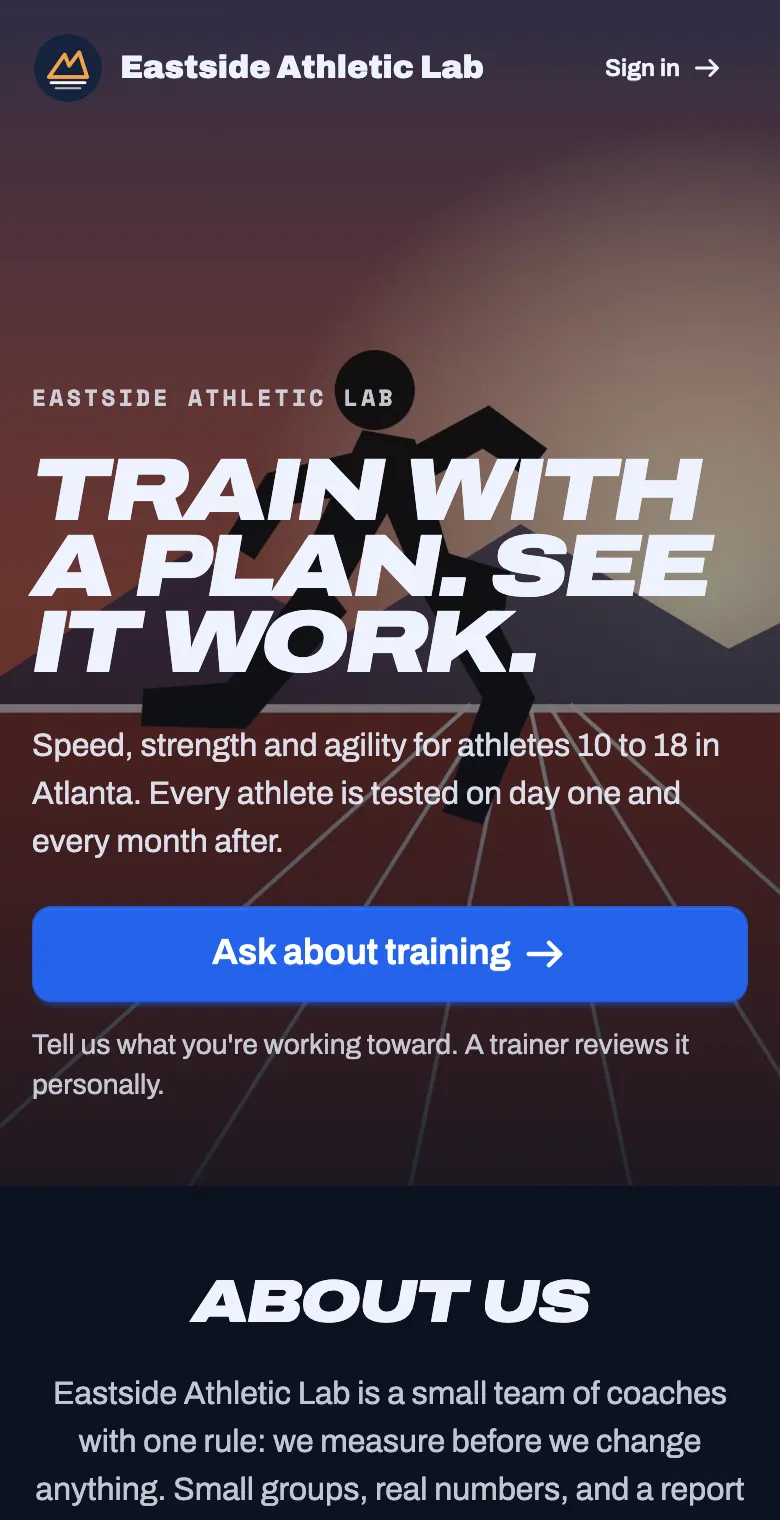
Until you publish, visitors to your address see a “coming soon” page with your name and logo.
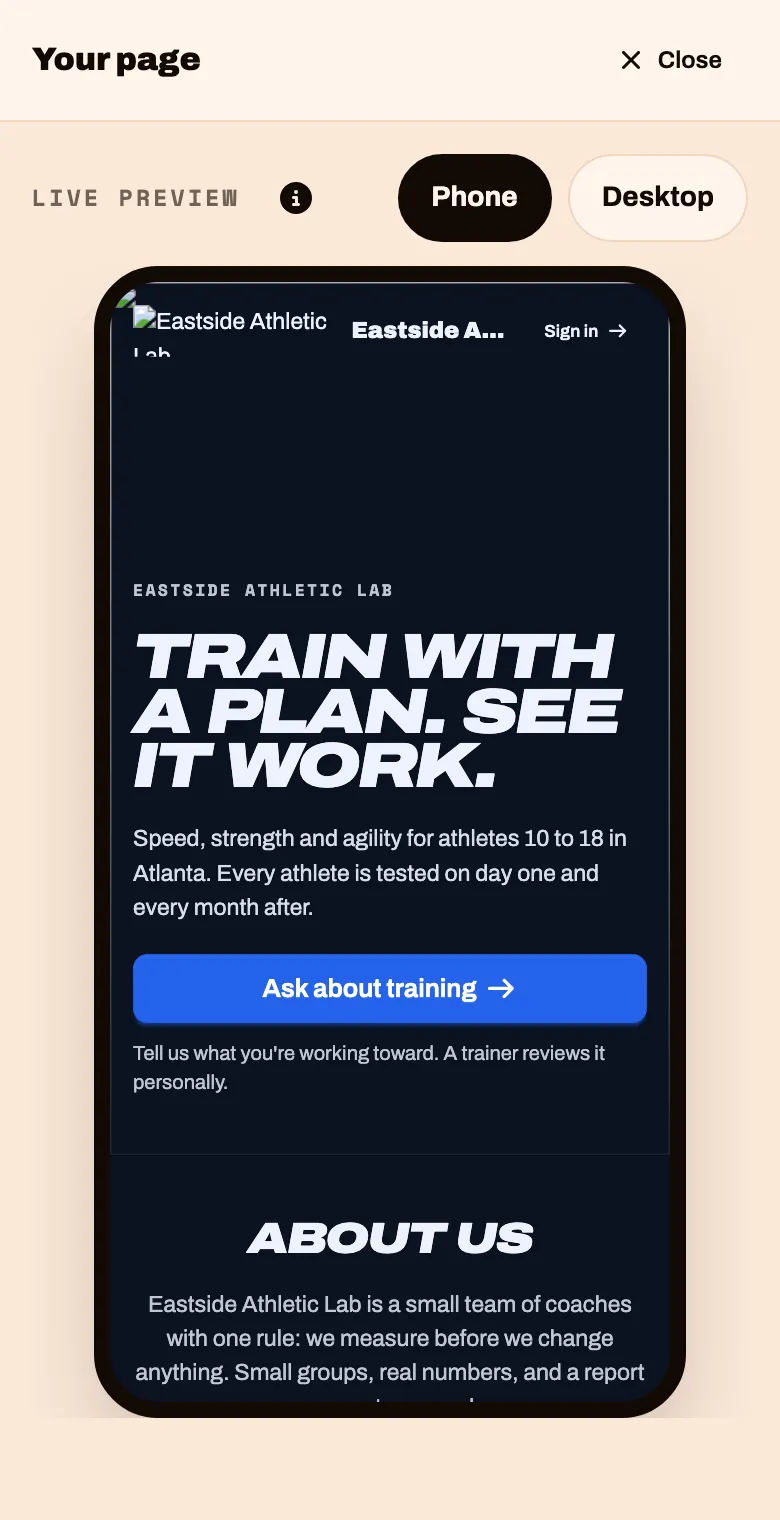
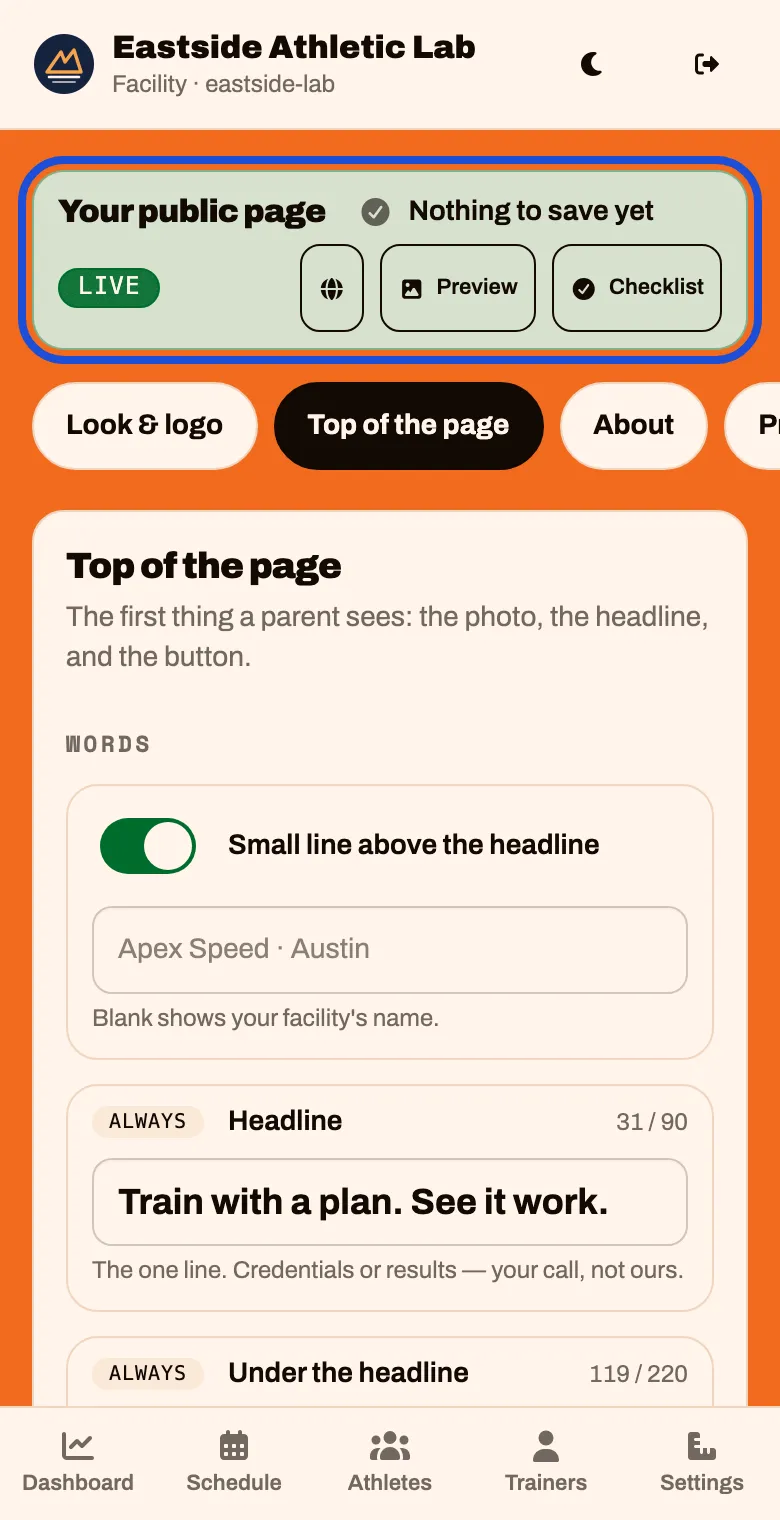
In the page builder, tap Preview and read your page the way a parent will. Tap Close when you are done.
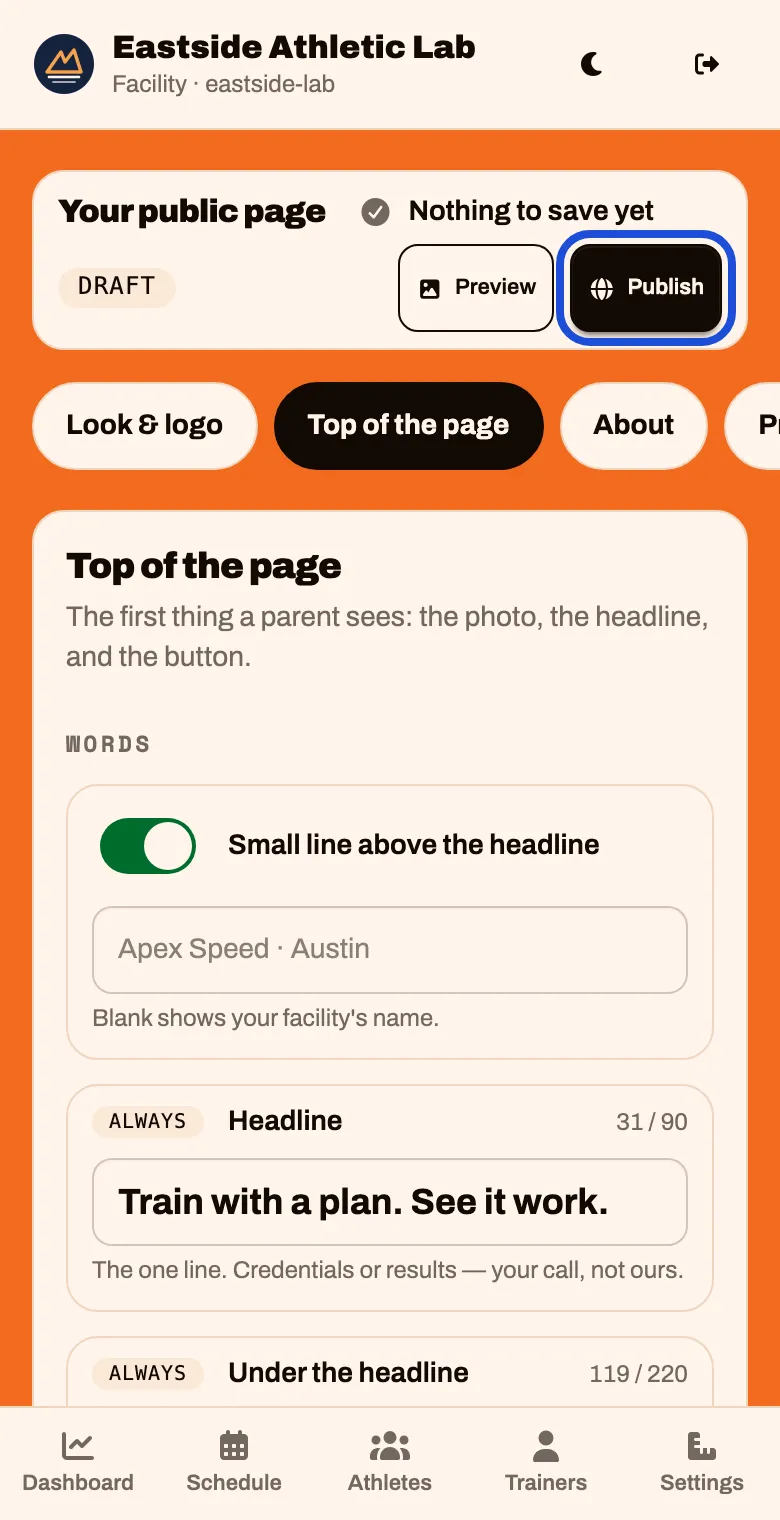
Tap Publish
If the button says “Publish — 2 things first”, tap it anyway. It shows you what is missing.
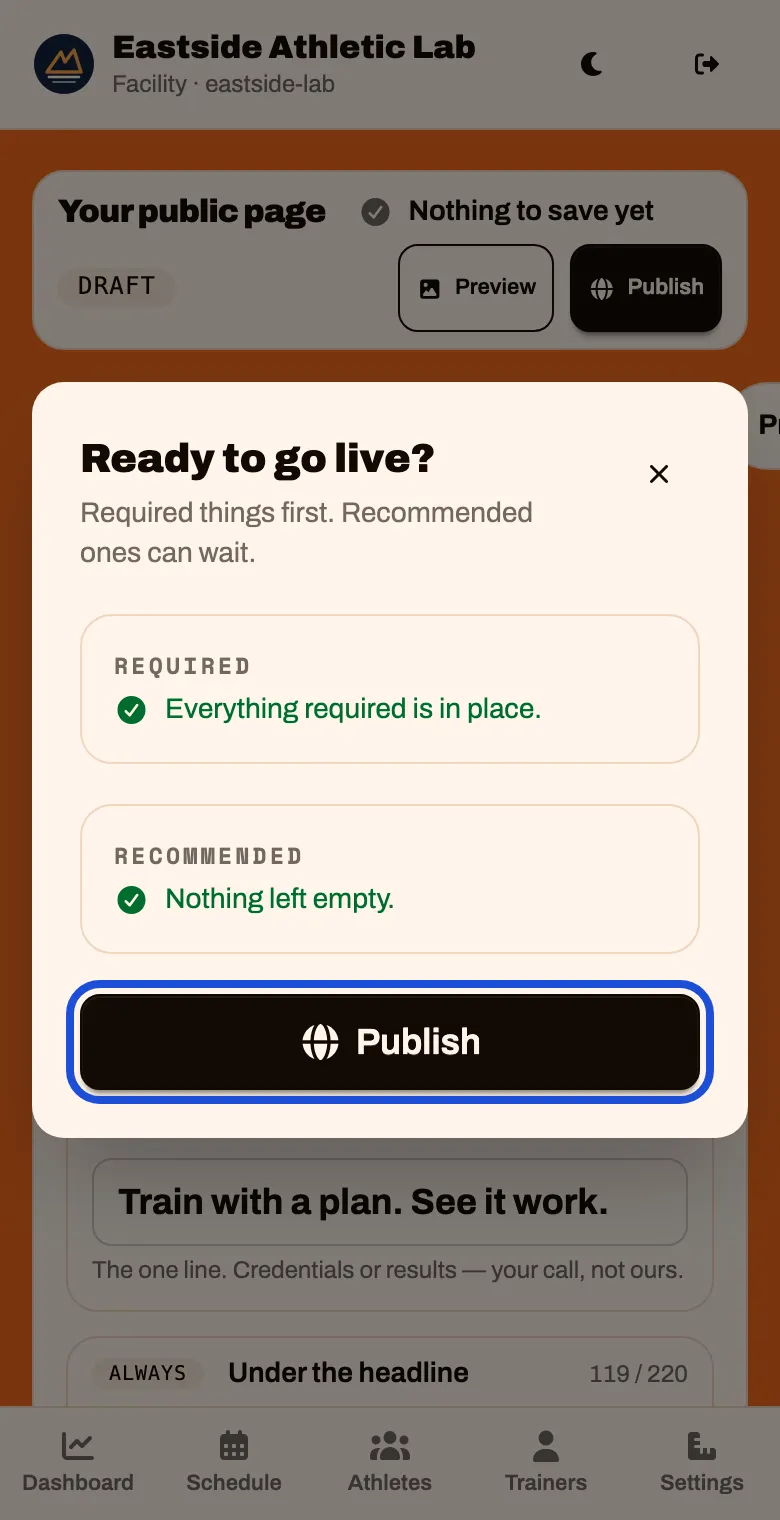
Read the checklist. Required has to be complete. Recommended can wait. Tap Publish
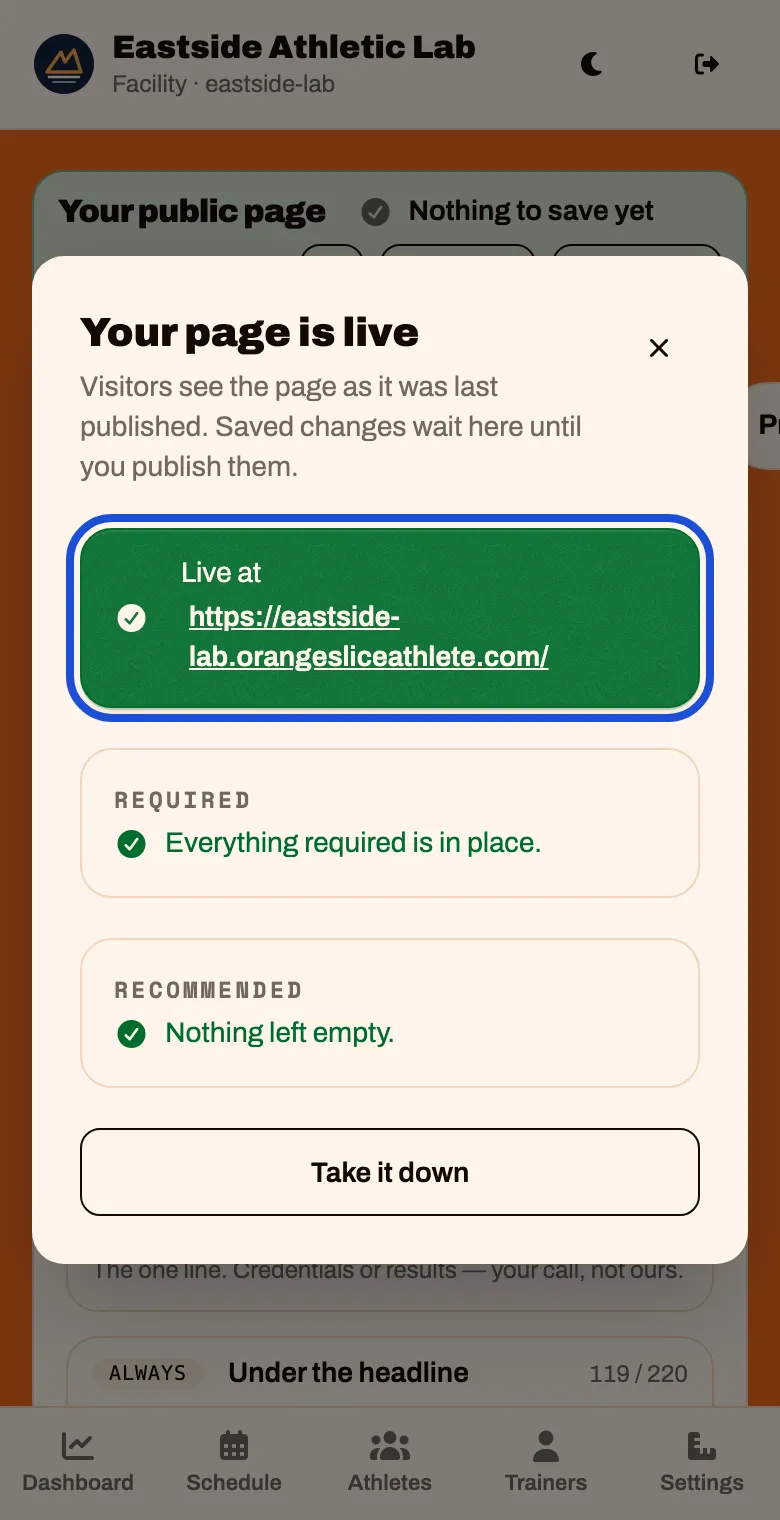
It says Your page is live and shows your address.
What Publish needs
| Required | Recommended |
|---|---|
| A headline of your own | A tall photo for phones |
| A line under the headline | A few lines about who you are |
| A wide photo or a video | At least one program that is live |
| A logo | You, with a photo and a bio |
| A brand color | Where you train |
| A way to reach you |
Share your address
Your page lives at https://your-address.orangesliceathlete.com. The checklist shows yours after Live at. Put it where families already look:
- Your website. Add a button that says “Ask about training” and links to your address.
- Instagram, Facebook, TikTok. Use it as the link in your bio.
- Your Google Business Profile. Use it as your website or your booking link.
- Your email signature, flyers and business cards.
Open your address on your phone and see it for yourself.
Changing the page later
Changes save as you make them, but visitors keep seeing the last published page. When the bar says Changes not yet live, tap Publish changes
Approving a trainer’s photo and bio counts as a change. So does adding a location. Publish again after either.
To take the page down, open the Checklist and tap Take it down. Your work is kept.